'%3e%3cpath%20d='M228.35%20222.54L225.56%20226.02C204.34%20252.45%20179.22%20275.14%20150.9%20293.47L150.55%20293.67C149.48%20294.21%20148.35%20294.47%20147.22%20294.47C146.09%20294.47%20144.97%20294.2%20143.89%20293.67L143.45%20293.41C54.62%20232.47%206.41%20146.74%200.14%2038.61L0%2036.23L2.11%2035.13C32.45%2019.29%2065%208.72%2098.88%203.72L103.37%203.06L131.96%200.33C188.78%20-2.16%20243.29%209.54%20293.95%2035.1L295.9%2036.09L295.97%2038.28C296.37%2050.38%20295.21%2062.54%20292.53%2074.43L285.4%20107.16C277.74%20139.81%20264.45%20170.54%20245.89%20198.5L228.36%20222.55L228.35%20222.54Z'%20fill='%2332D583'/%3e%3cpath%20d='M262.12%2063.47L262.07%2061.79L260.57%2061.03C221.63%2041.38%20179.73%2032.39%20136.05%2034.3L133.62%2034.41L133.36%2036.83C130.6%2062.29%20134.03%2087.25%20143.54%20111.03L144.23%20112.77L146.1%20112.82C170.11%20113.4%20193.51%20118.42%20215.73%20127.78C216.76%20128.18%20217.72%20128.69%20218.6%20129.31C216.32%20135.83%20213.56%20142.2%20210.35%20148.3C208.33%20146.76%20206.33%20145.18%20204.38%20143.58L204.08%20143.33L203.72%20143.17C190.04%20137.16%20175.58%20133.94%20160.75%20133.59L155.09%20133.45L158.37%20138.07C173.72%20159.63%20193.61%20176.32%20217.43%20187.63C218.26%20188.04%20219.12%20188.25%20219.99%20188.25C220.86%20188.25%20221.72%20188.04%20222.55%20187.63L223.23%20187.29L223.65%20186.66C237.92%20165.17%20248.14%20141.55%20254.02%20116.44L254.48%20114.48L252.78%20113.4C226.43%2096.66%20197.33%2086.82%20166.25%2084.13C164.94%2077.72%20163.91%2071.2%20163.2%2064.68C195.98%2066.97%20226.95%2076.52%20255.3%2093.1L258.65%2095.06L259.5%2091.28C261.56%2082.14%20262.45%2072.79%20262.15%2063.49L262.12%2063.47Z'%20fill='%23FCFCFD'/%3e%3cpath%20d='M177.71%20185.94L177.37%20185.72L176.99%20185.6C163.75%20181.4%20150.1%20180.28%20136.4%20182.27L130.96%20183.06L134.76%20187.03C143.39%20196.06%20152.79%20204.39%20162.74%20211.81C158.07%20216.28%20153.1%20220.47%20147.93%20224.28C147.83%20224.26%20147.73%20224.21%20147.59%20224.1C129.27%20209.62%20113.38%20192.53%20100.33%20173.27C112.8%20167.21%20126.16%20163.79%20140.09%20163.09C140.71%20163.13%20141.33%20163.16%20141.95%20163.16C144.14%20163.16%20146.32%20162.89%20148.46%20162.35L151.09%20161.69L150.98%20161.13L152.3%20160.89L150.32%20158.41C150.05%20157.72%20149.6%20157.15%20149.01%20156.76C143.71%20150.07%20138.92%20142.88%20134.78%20135.35L134.13%20134.17L132.8%20133.93C130.11%20133.44%20127.38%20133.44%20124.72%20133.93C110.9%20136.33%2097.44%20140.45%2084.69%20146.18C75.14%20125.27%2068.99%20103.11%2066.38%2080.23C72.33%2077.94%2078.43%2075.94%2084.59%2074.26C85.83%2089.42%2089.05%20104.34%2094.17%20118.66L94.49%20119.55L97.41%20121.49L98.74%20121.03C105.95%20118.53%20113.43%20116.84%20121%20116.01L124.26%20115.65L123.44%20112.48C121.73%20105.84%20119.88%2099.12%20117.97%2092.51C114.2%2075.25%20112.82%2057.54%20113.86%2039.87L114.06%2036.39L110.61%2036.9C84.57%2040.75%2059.55%2048.87%2036.23%2061.04L34.61%2061.89L34.72%2063.72C39.54%20146.84%2076.6%20212.75%20144.89%20259.6L145.23%20259.8C146.06%20260.21%20146.92%20260.42%20147.79%20260.42C148.66%20260.42%20149.52%20260.21%20150.35%20259.8L150.62%20259.64C172.4%20245.55%20191.71%20228.1%20208.02%20207.79L210.16%20205.12L207.13%20203.51C197.04%20198.15%20187.14%20192.24%20177.72%20185.93L177.71%20185.94Z'%20fill='%23FCFCFD'/%3e%3c/g%3e%3cdefs%3e%3cclipPath%20id='clip0_10_48'%3e%3crect%20width='296.04'%20height='294.48'%20fill='white'/%3e%3c/clipPath%3e%3c/defs%3e%3c/svg%3e)
eSIM facts
- Active eSIMs: 2 at once
- Stored eSIMs: Varies by model
- SIM variants: Nano-SIM + Nano-SIM + eSIM (max 2 at a time)
Nano-SIM + Nano-SIM + eSIM (max 2 at a time)
 Ulefone eSIM device guide
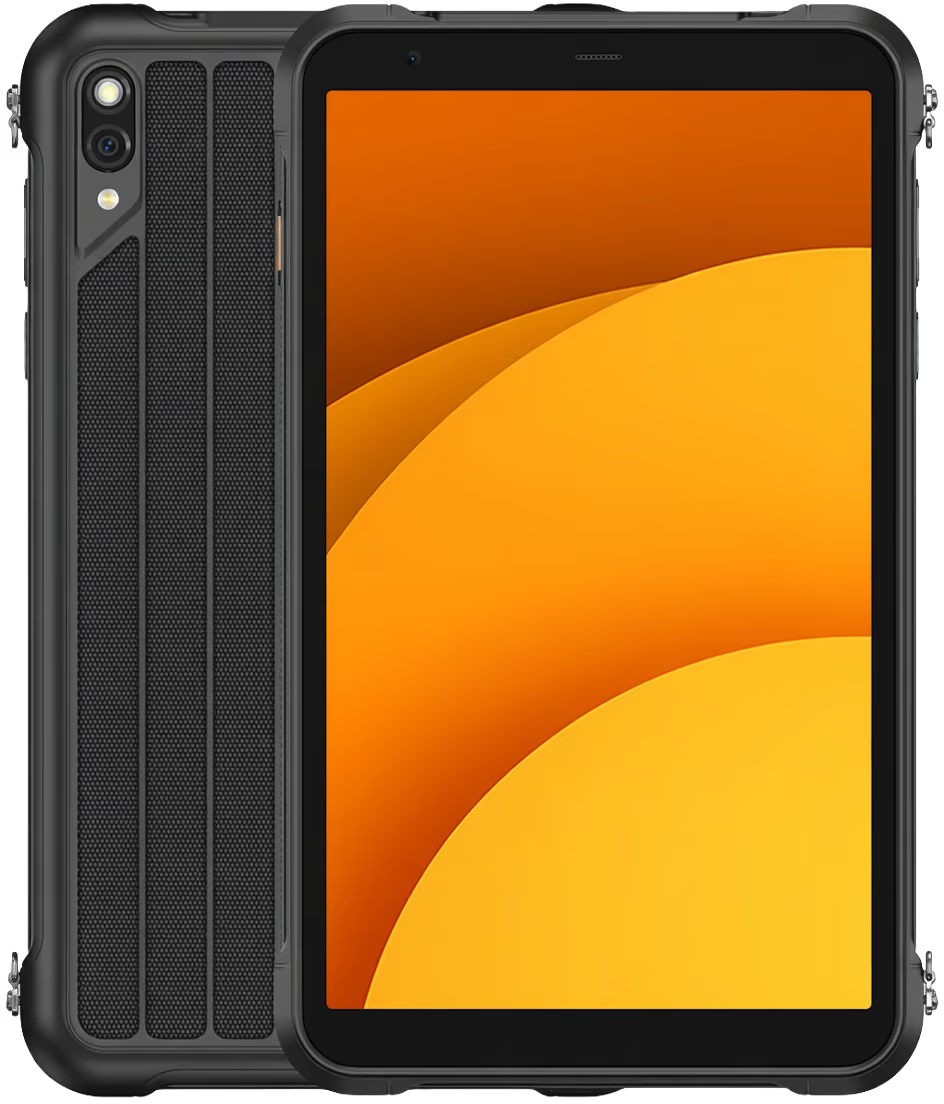
Ulefone RugKing Pad 2 Pro supports eSIM. Review Ulefone mobile compatibility, key device specs, SIM details, battery, display, camera and network bands for encryptSIM. Released 2026, January.
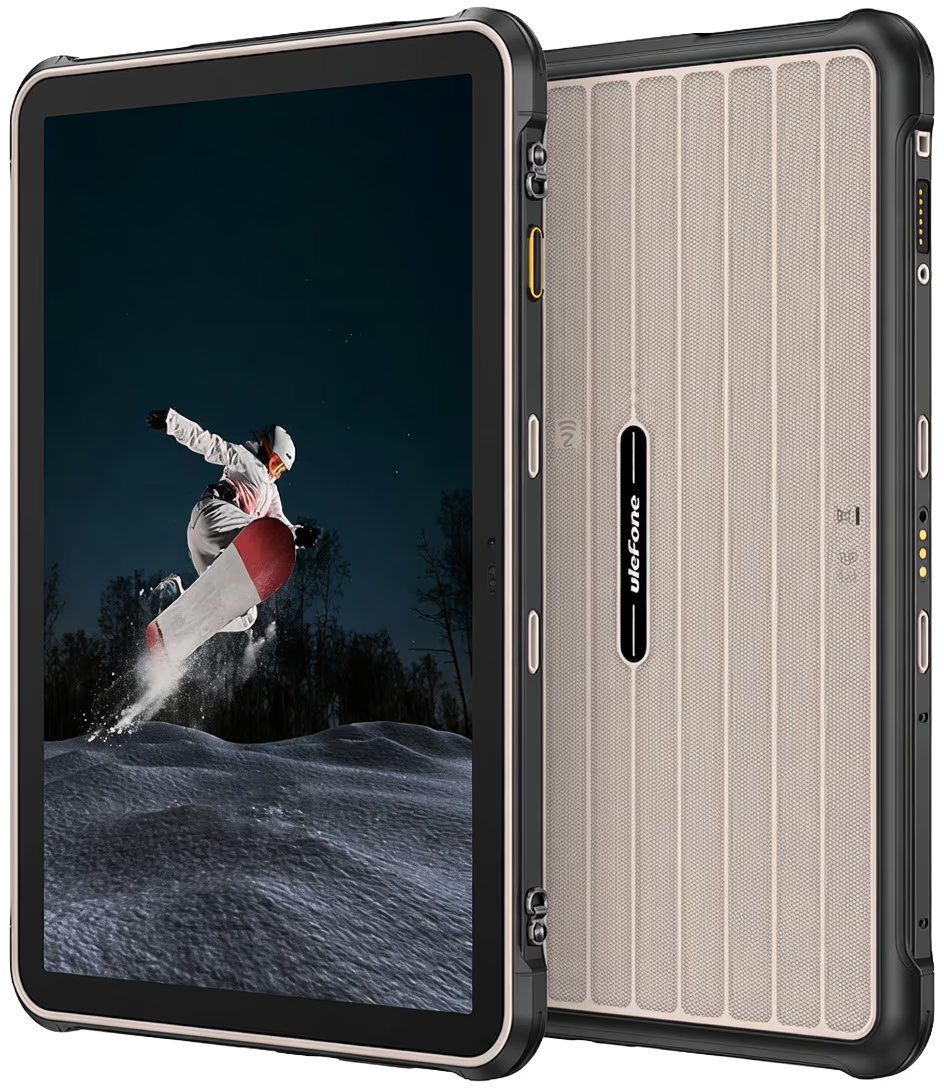
Ulefone RugKing Pad 2 Pro is listed as an eSIM-capable device in the encryptSIM device catalog.
Nano-SIM + Nano-SIM + eSIM (max 2 at a time)
Follow the device-specific setup flow for installing and activating an encryptSIM eSIM.
This guide shows you how to install and activate your encryptSIM eSIM on Ulefone RugKing Pad 2 Pro using a Universal Link, QR code, or manual activation details.
Check that your Ulefone RugKing Pad 2 Pro is ready for eSIM installation.
Device models covered by this guide:
Make sure your phone:
Some Android phones support eSIM only in certain countries, carriers, or regional variants. If you do not see an option to add or download an eSIM, check the device model, carrier lock status, and EID.
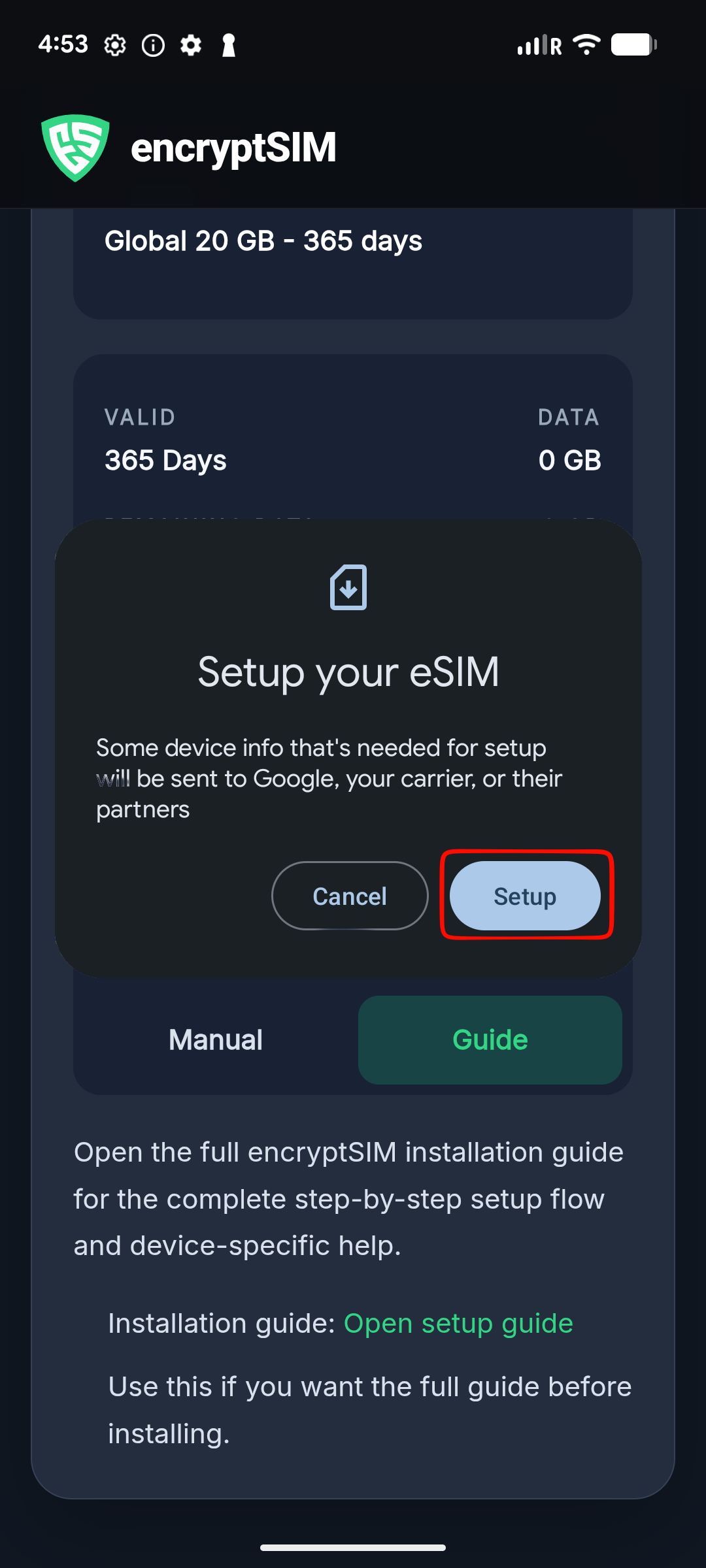
Use this if your encryptSIM order page or app provides an Android Universal Link or direct eSIM installation link. This is usually the easiest method because it can open Android eSIM setup directly.
If the link does not open Android eSIM setup, use the QR code or manual installation method instead.
Use this method if you have the eSIM QR code on another phone, computer, tablet, or printed page.
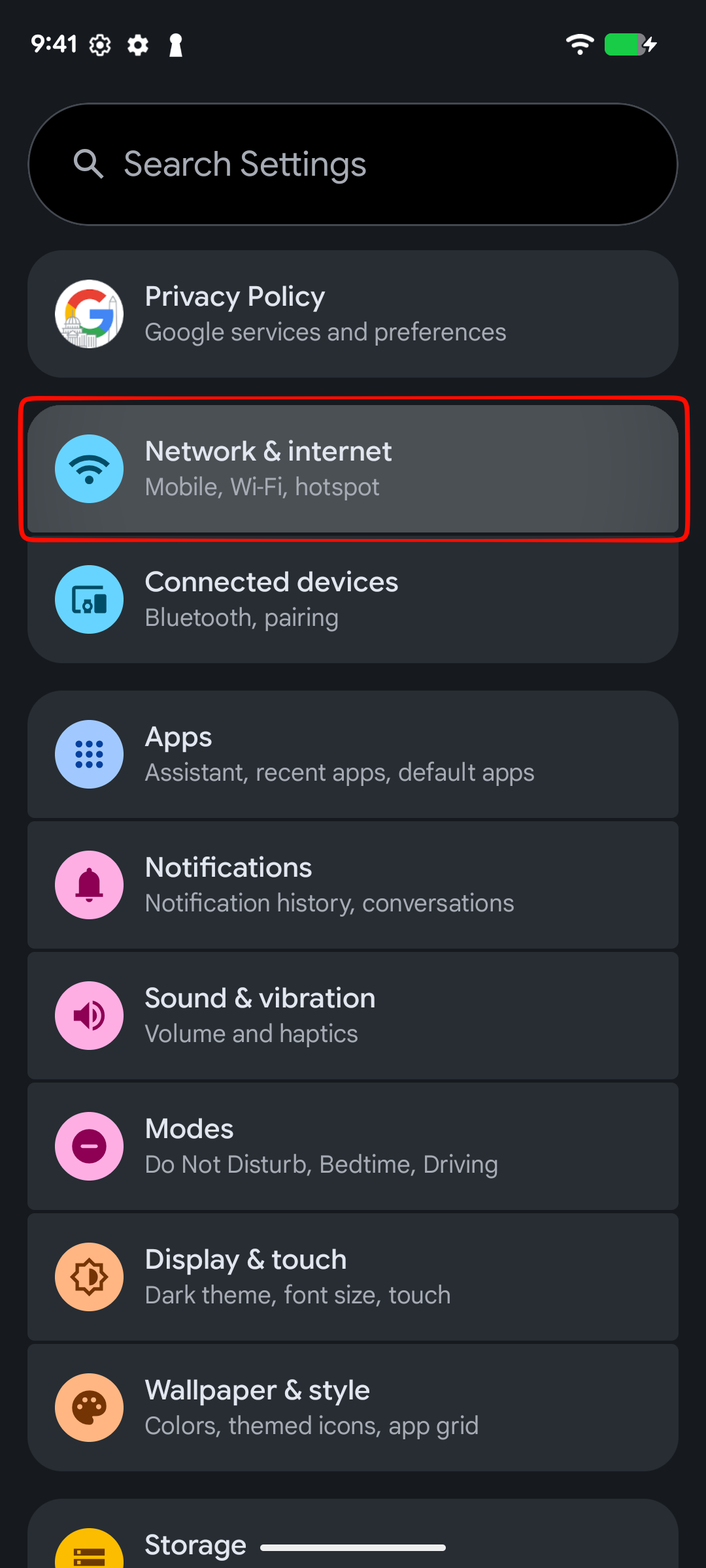
On your Ulefone RugKing Pad 2 Pro, go to:
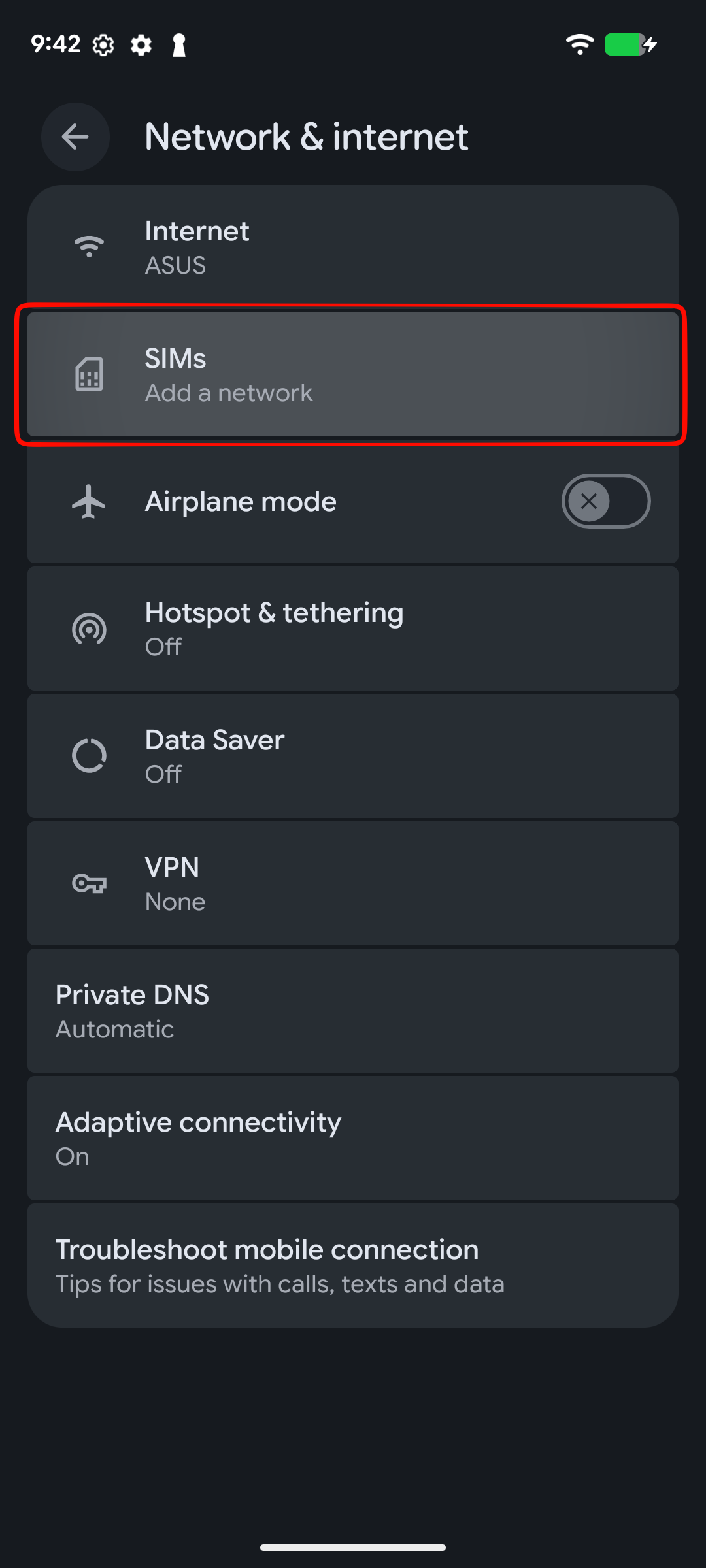
Settings - Network & internet - SIMs
On some Pixel versions, the SIMs row may show Add a network. Tap that row to continue.
Depending on the device, the menu may say:
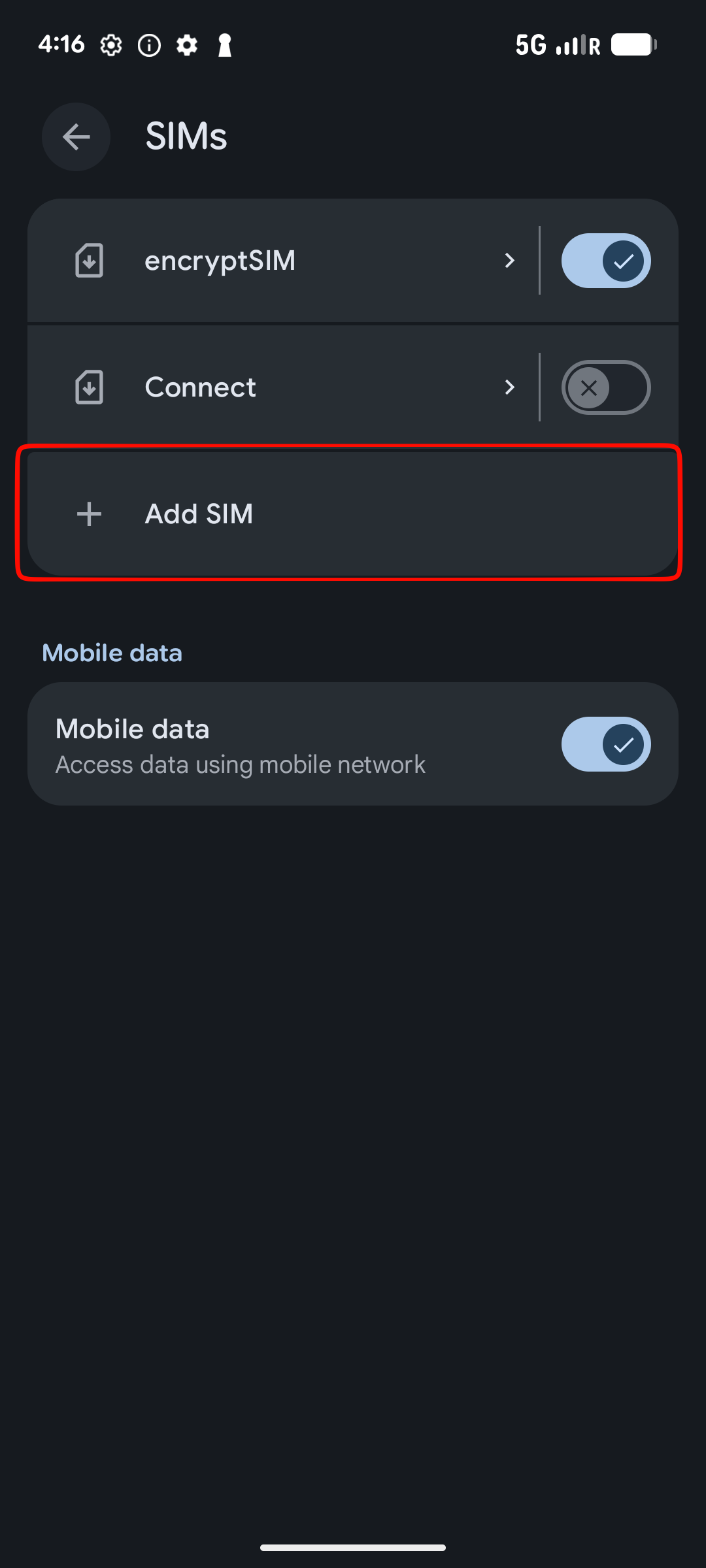
Tap Add SIM.
If tapping SIMs or Add a network starts eSIM setup immediately, continue with the next screen.
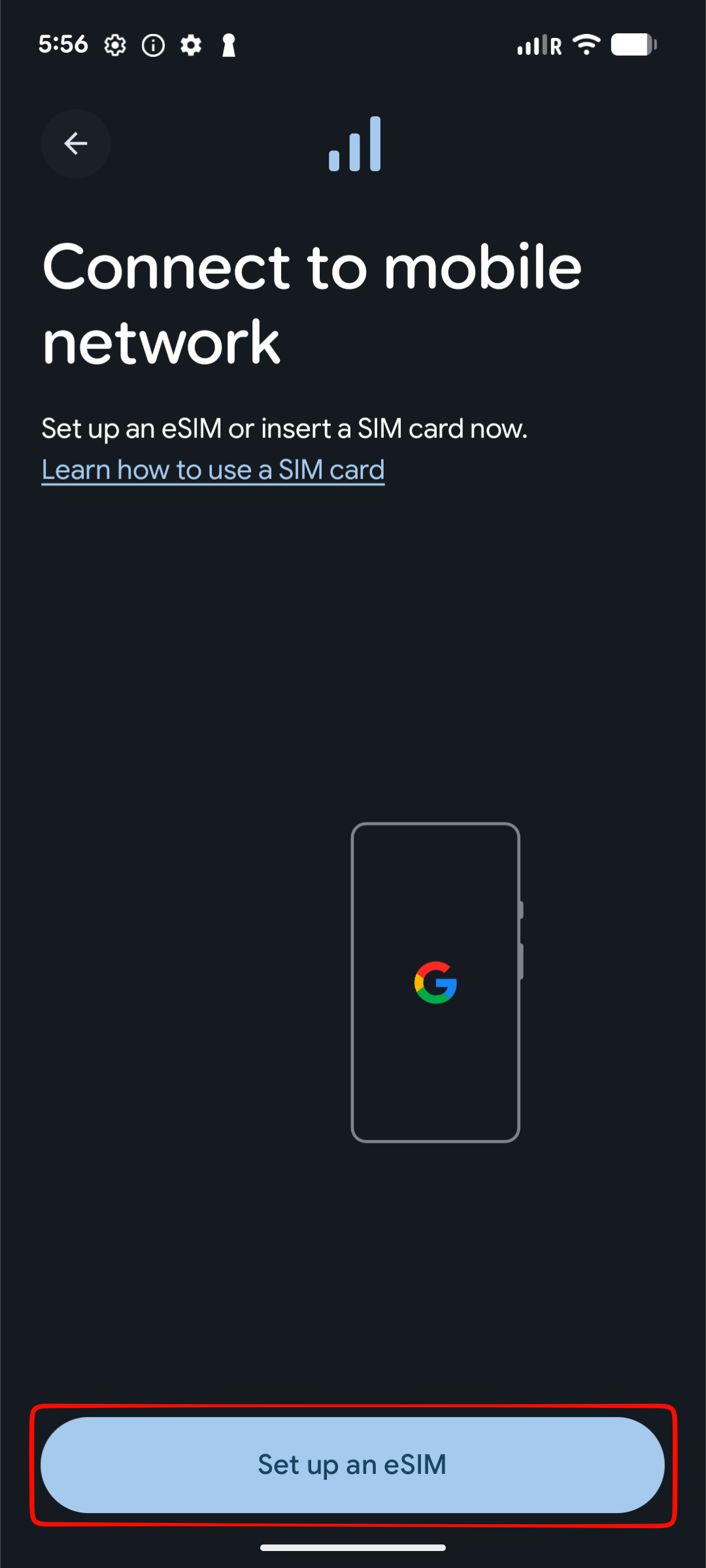
If Android asks whether you want to use a physical SIM or eSIM, choose the eSIM option. Depending on the phone, this may say:
Keep Wi-Fi connected while Android opens eSIM setup.
Point your Ulefone RugKing Pad 2 Pro camera at your encryptSIM eSIM QR code.
If the QR code is saved on the same phone, tap Scan from photo if your phone shows that option. If Android detects the eSIM, tap Set up and wait for the eSIM to download.
Android may show the carrier or provider name during setup. You can rename the eSIM to encryptSIM after it is installed.
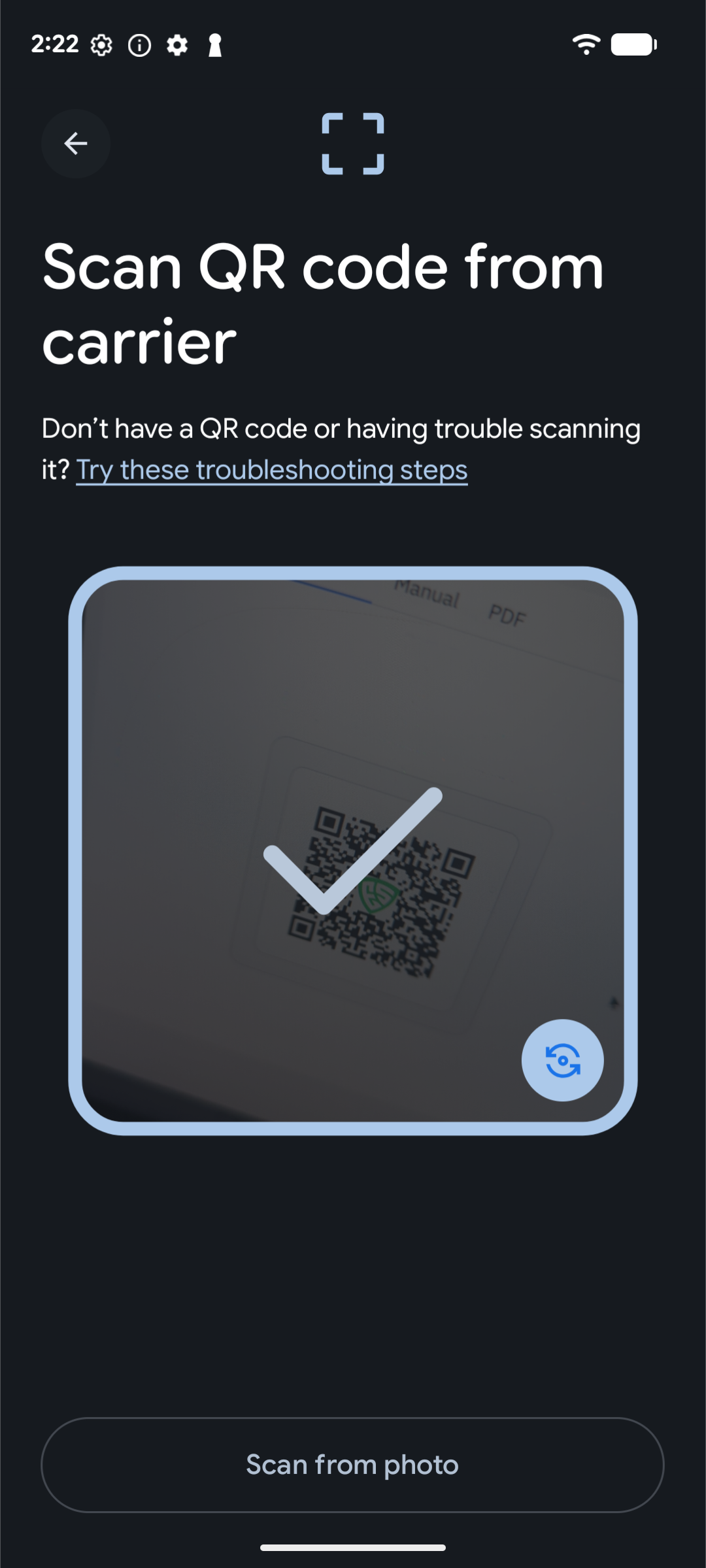
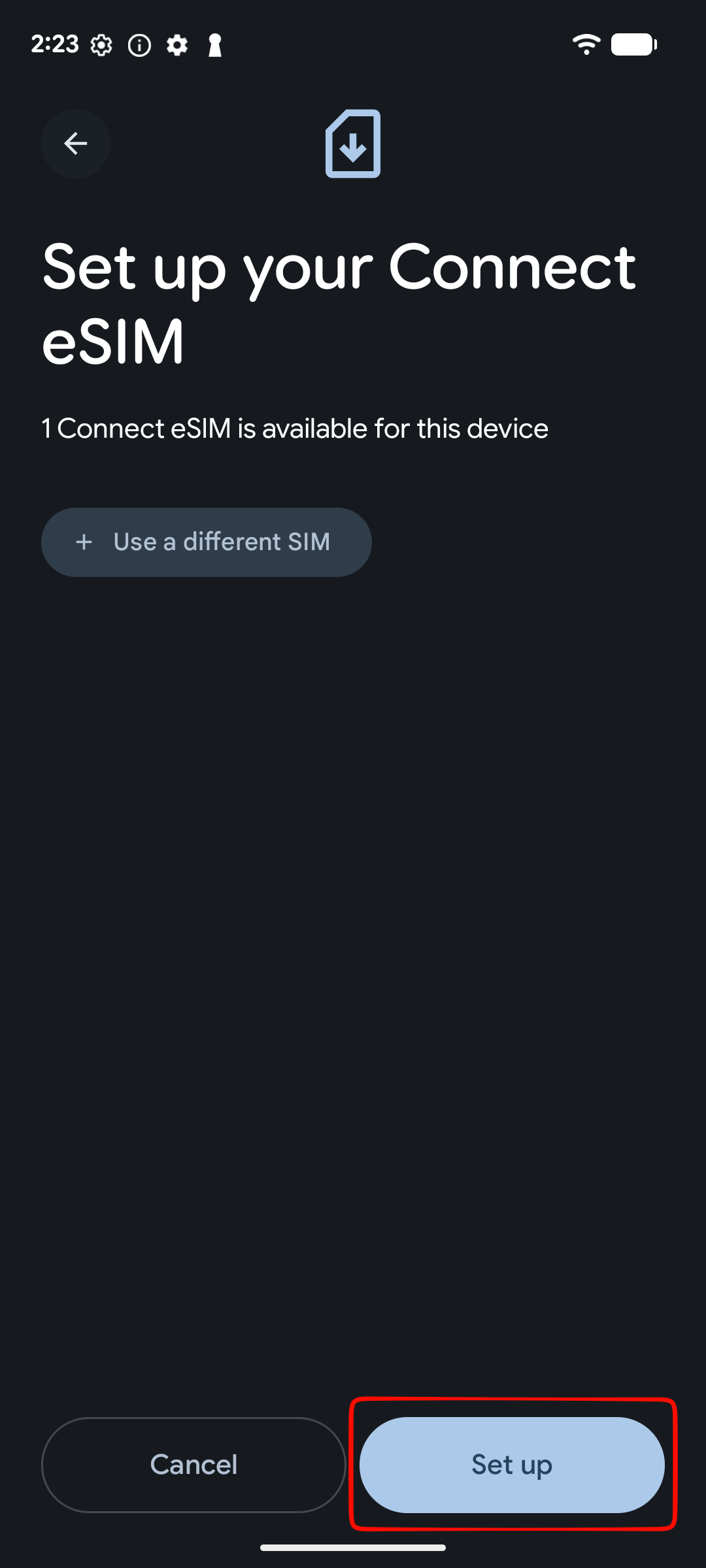
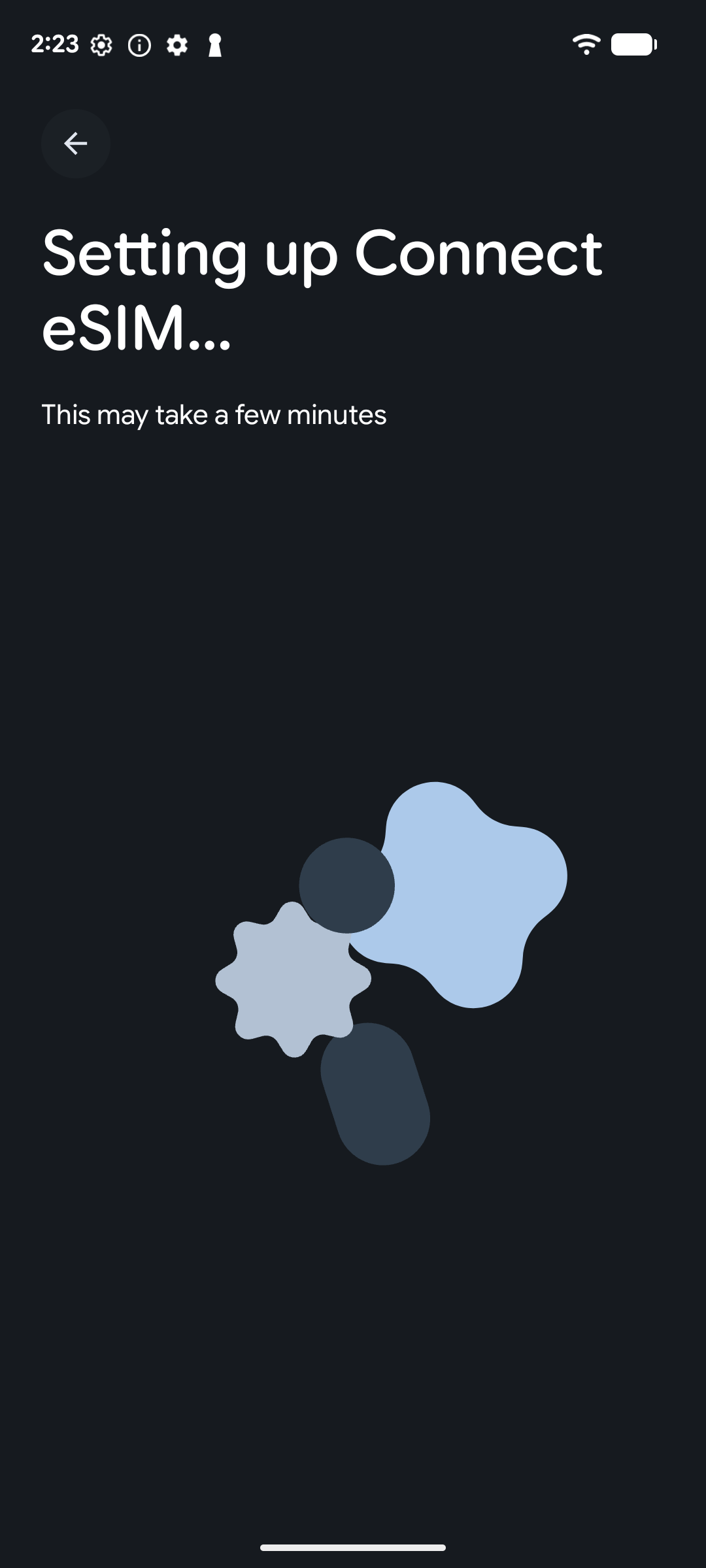
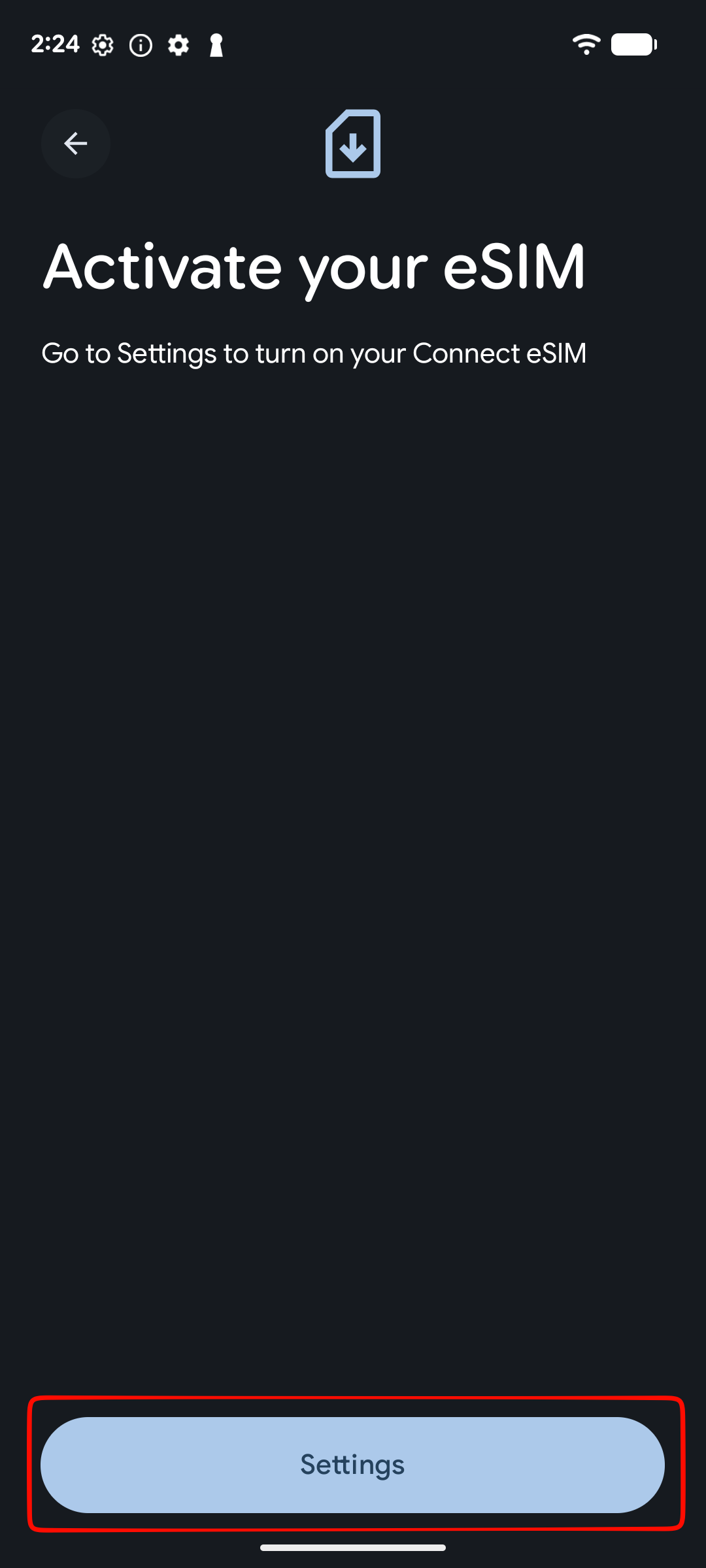
If Android sends you to Settings, open the new eSIM and turn on Use this SIM.
If Android asks you to confirm, tap Turn on.
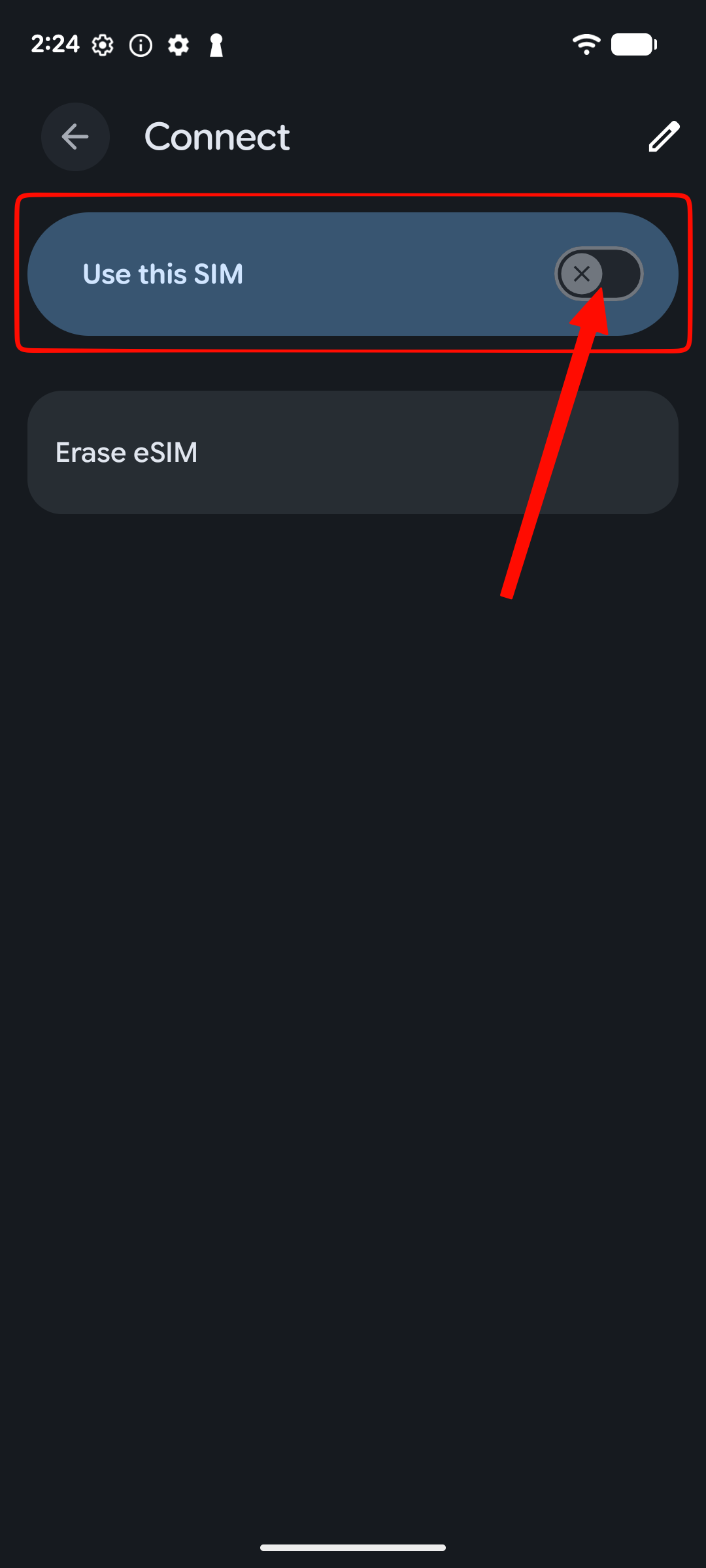
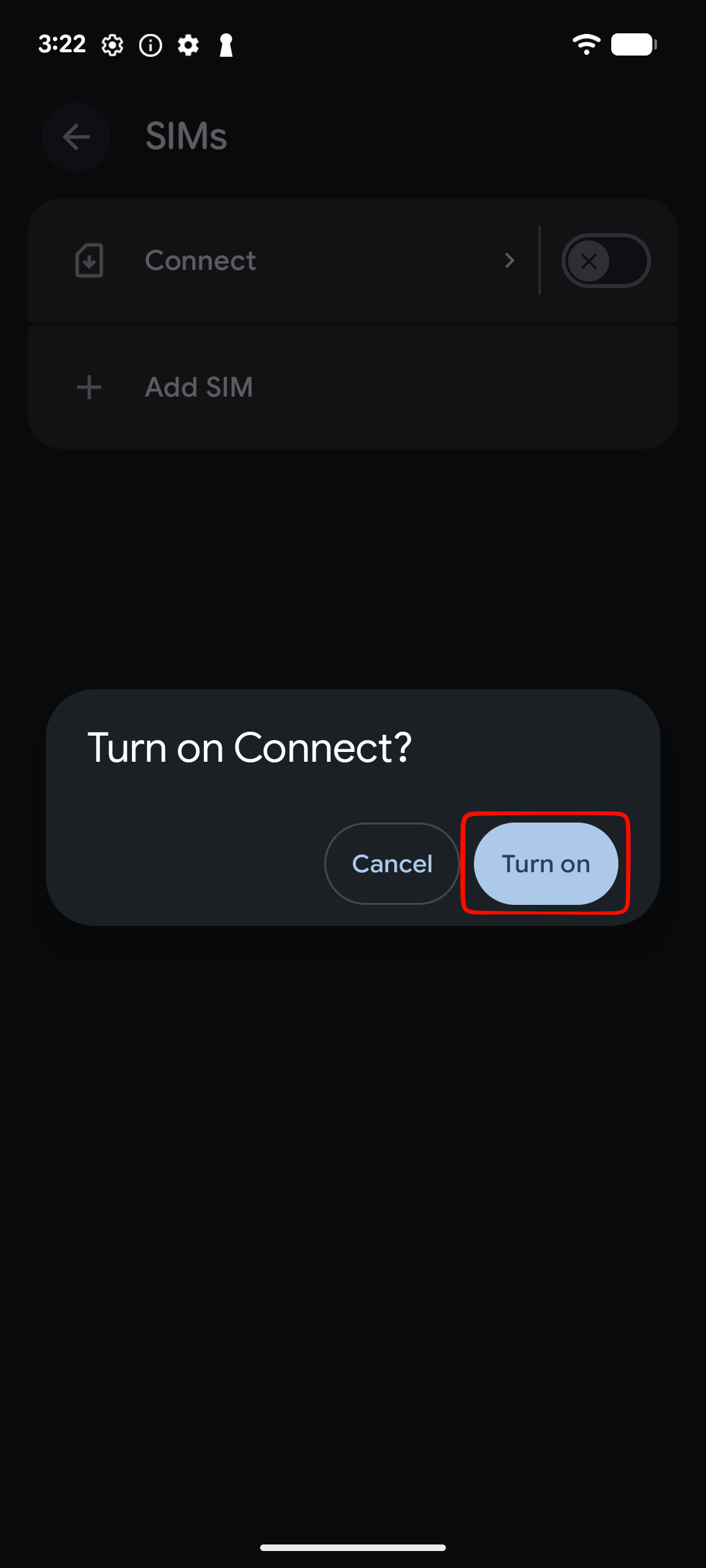
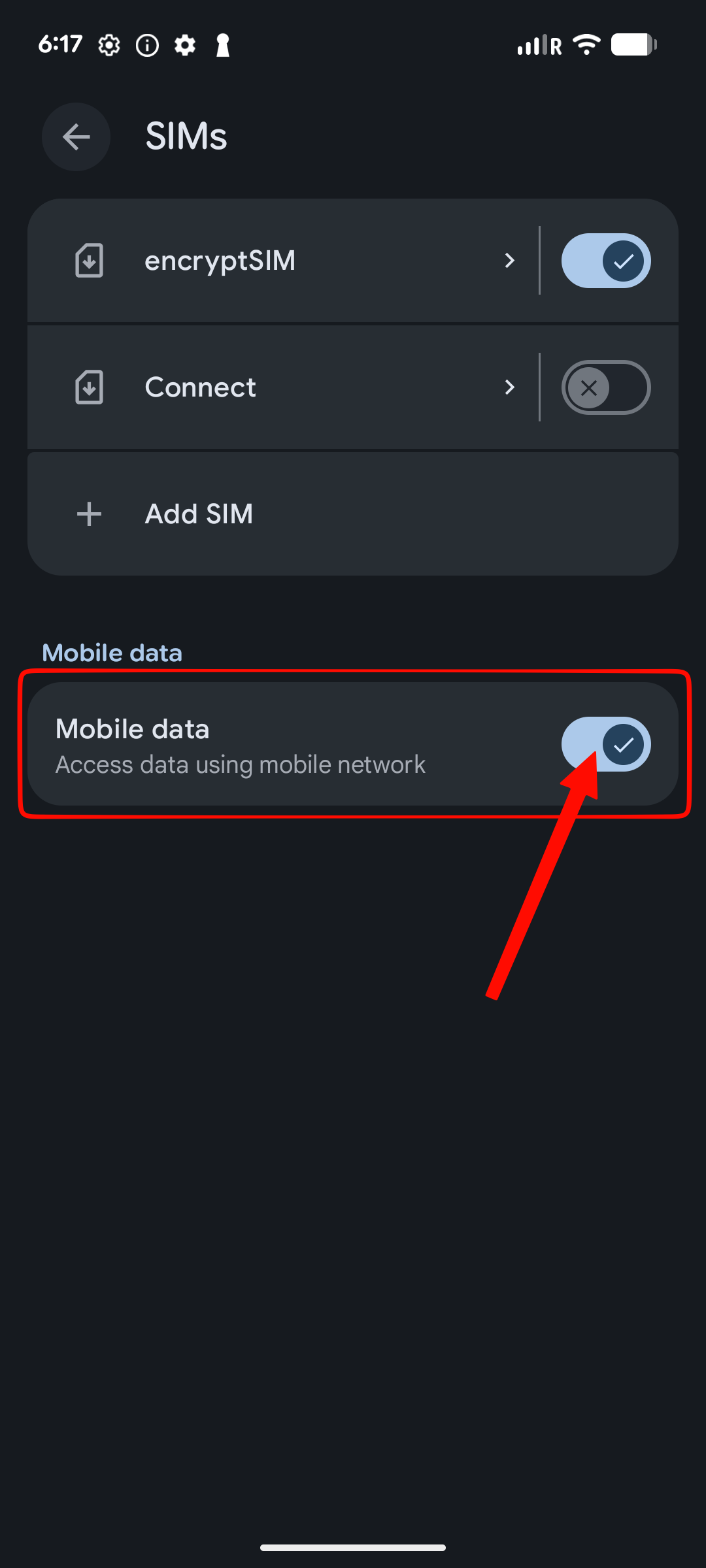
Go to:
Settings - Network & internet - SIMs - encryptSIM
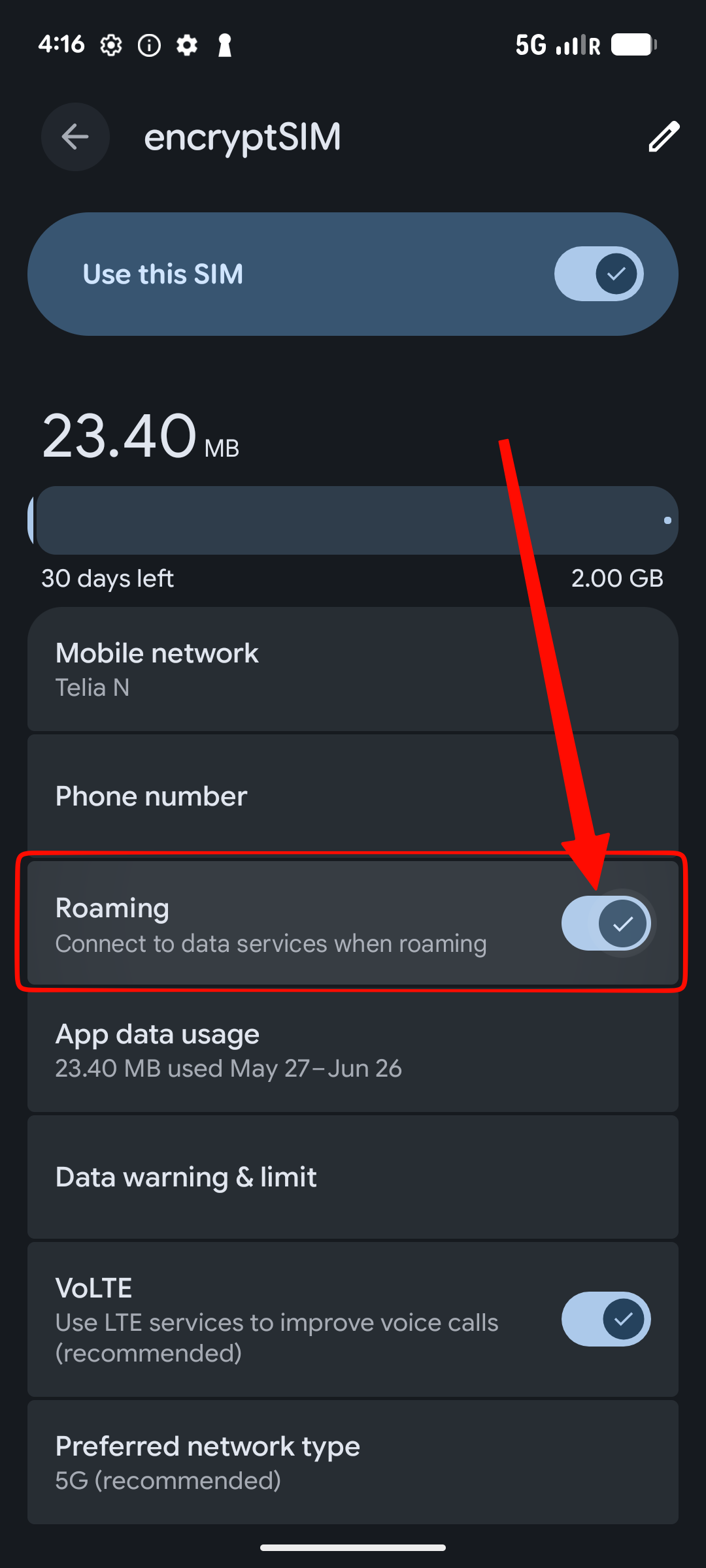
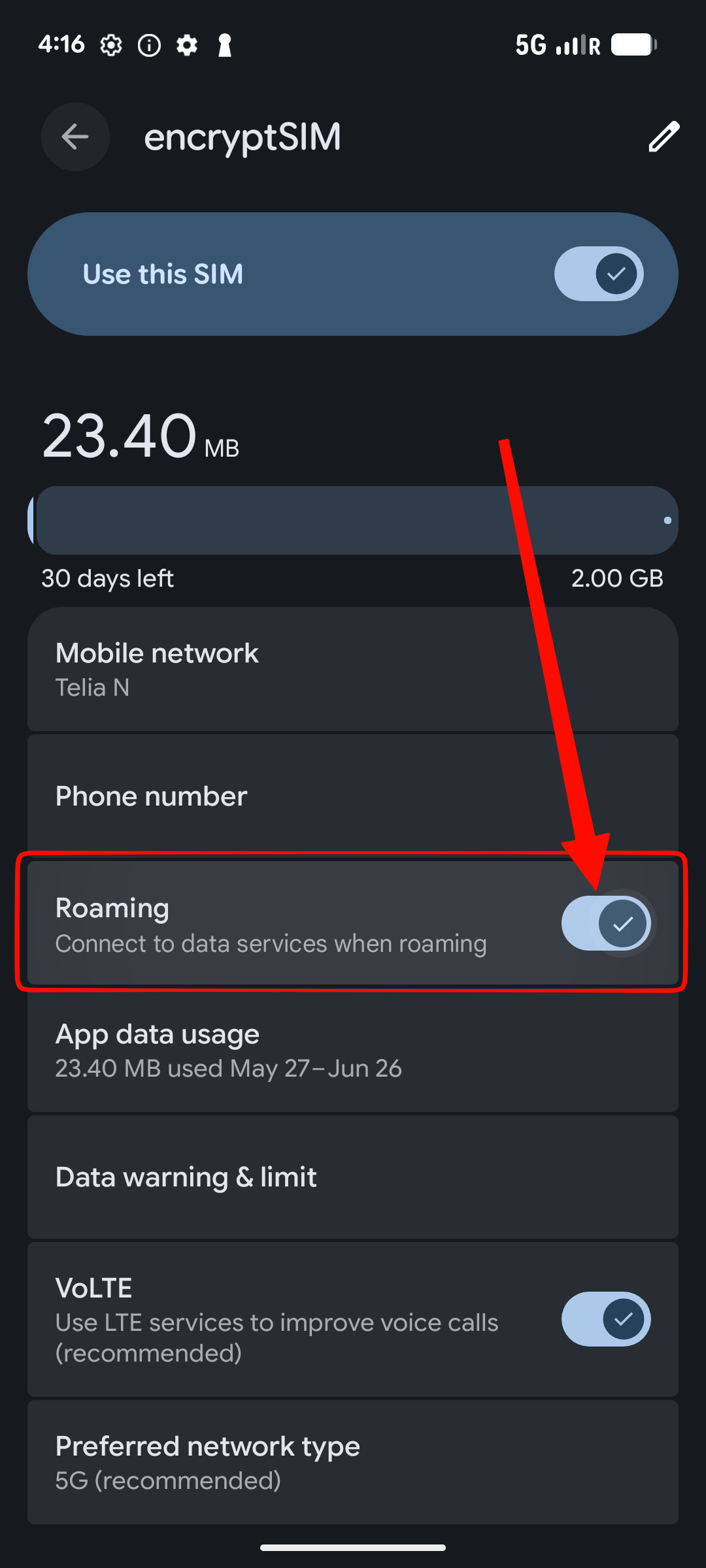
Make sure:
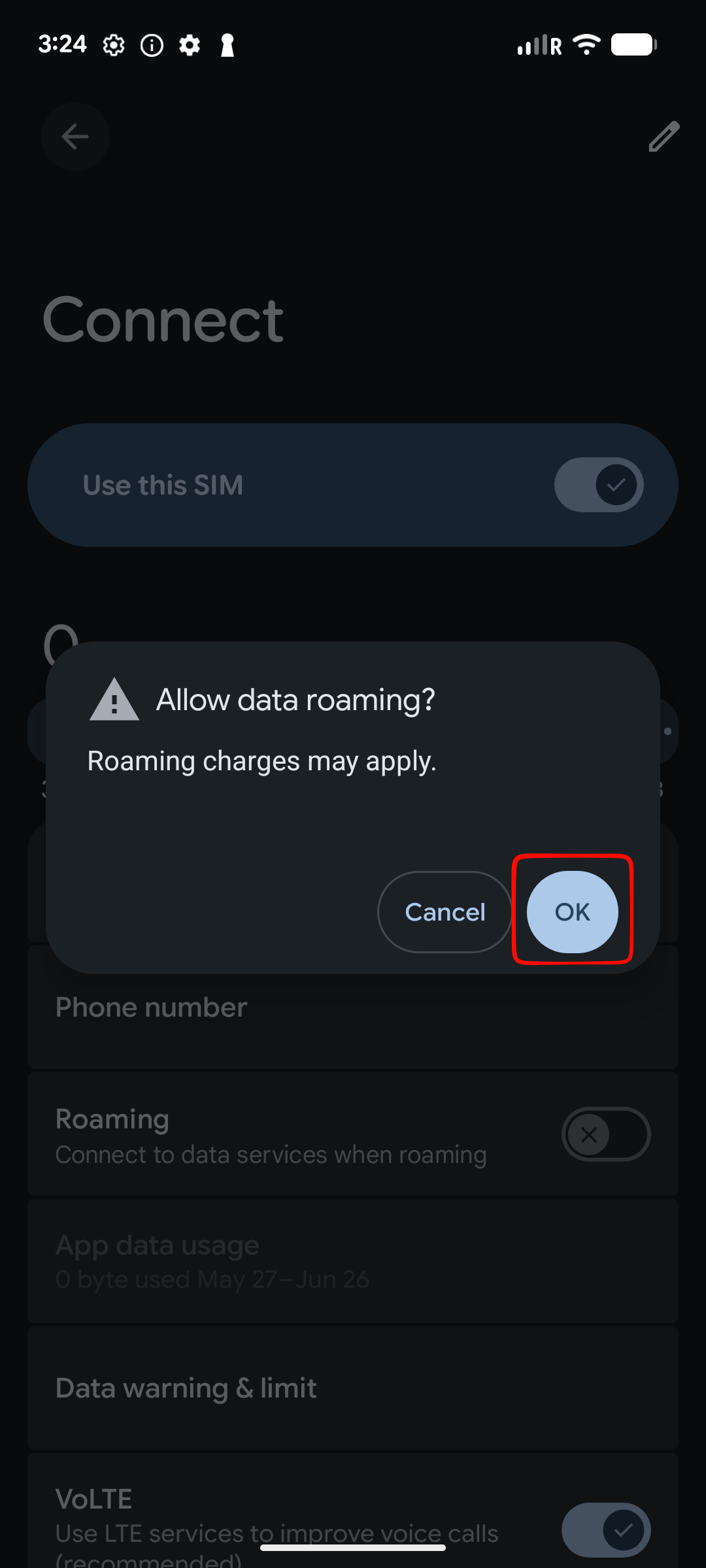
For most travel eSIMs, roaming must be enabled for the eSIM to connect abroad. If Android shows a roaming warning, tap OK.
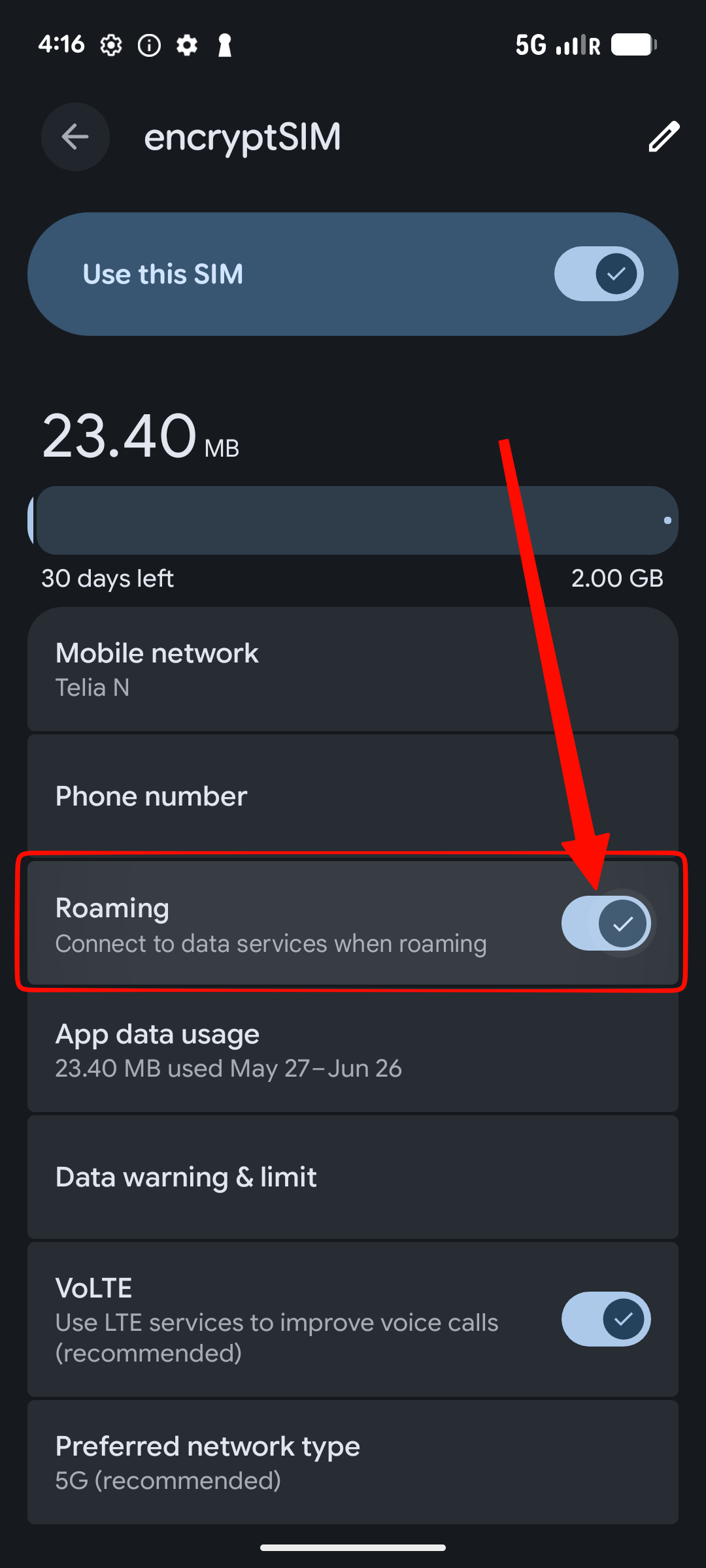
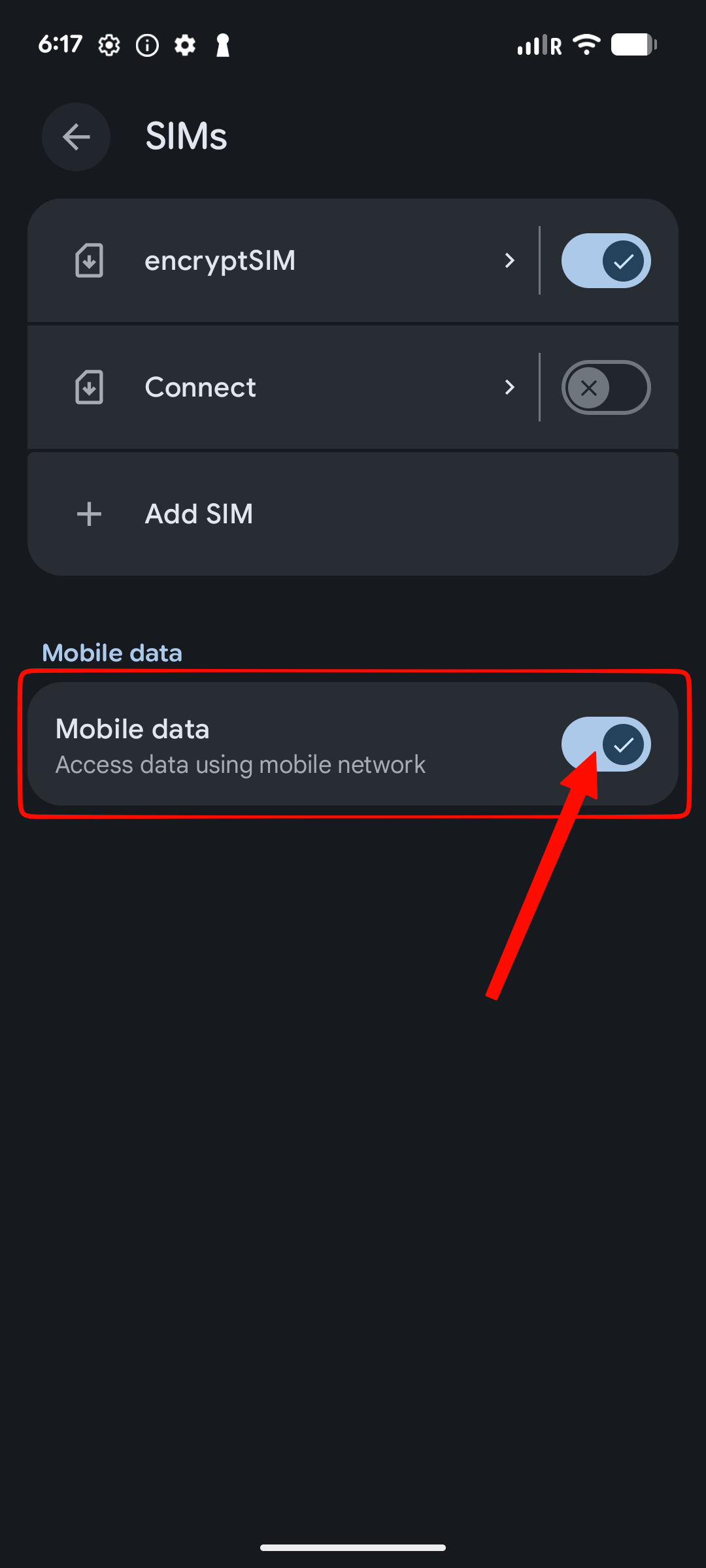
When you arrive in your destination, make sure:
Most users only need the steps above. Use this section if Android shows extra setup screens or if you want to rename the eSIM.
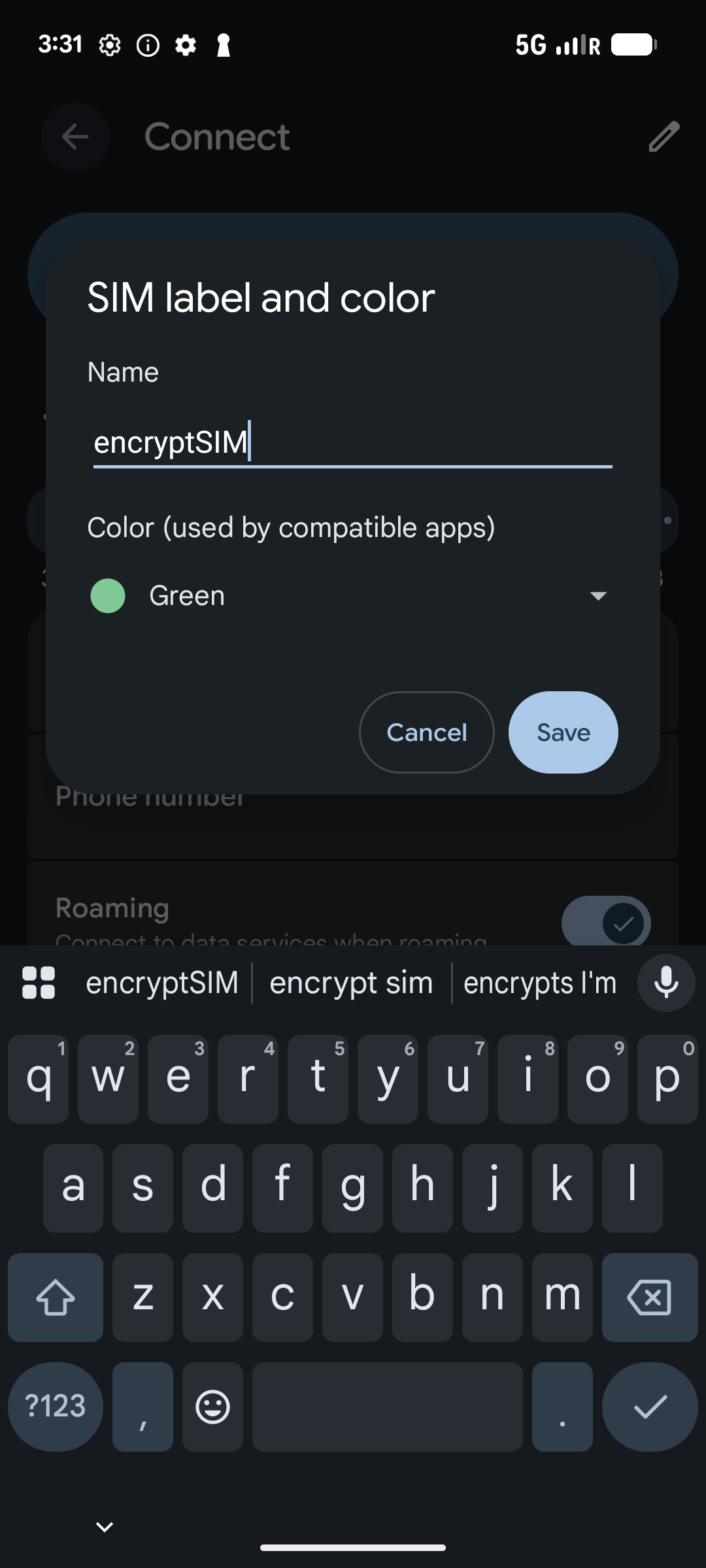
Use a clear label so you can recognize the eSIM later.
Recommended label: encryptSIM
The label option may appear during setup or inside the eSIM's SIM settings after installation.
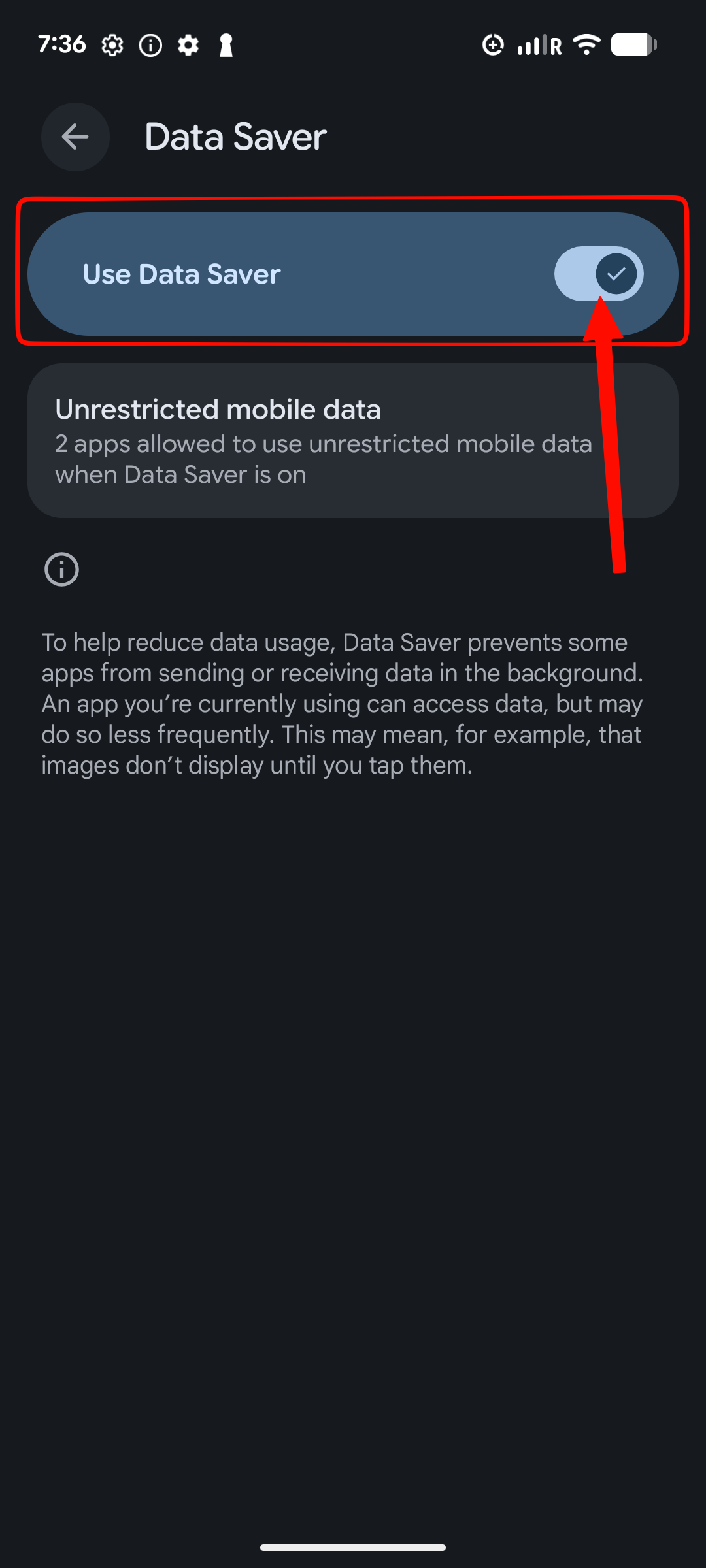
If your plan has a small data allowance, consider setting a data warning. Data Saver is optional: turn it on to reduce background data usage, or leave it off if you want apps to behave normally in the background.
You can change this later in Settings - Network & internet.
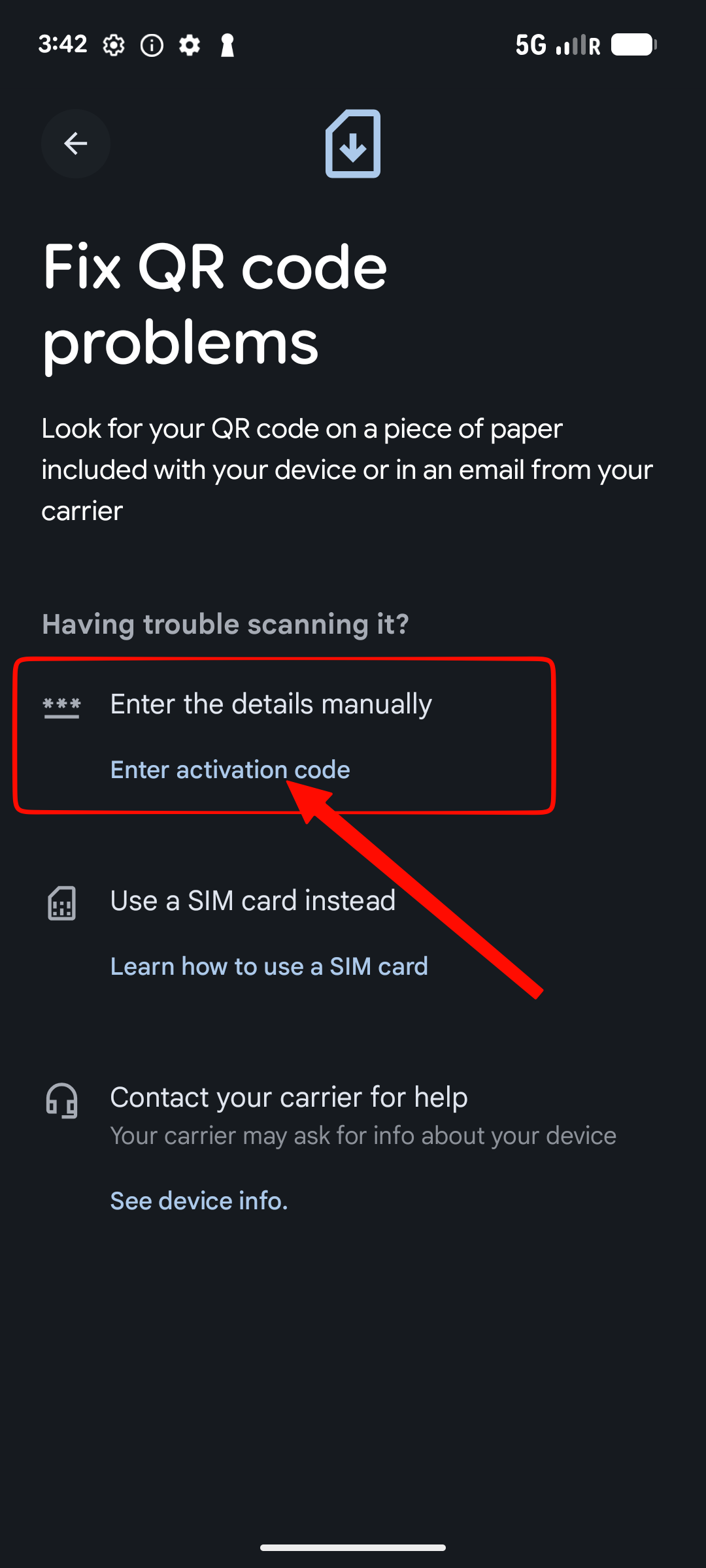
Use this if QR code scanning does not work.
Go to:
Settings - Network & internet - SIMs - Add SIM - Set up an eSIM
Then choose the option to enter details manually. Depending on the device, this may say:
Open your encryptSIM order page or email and copy the Android activation code.
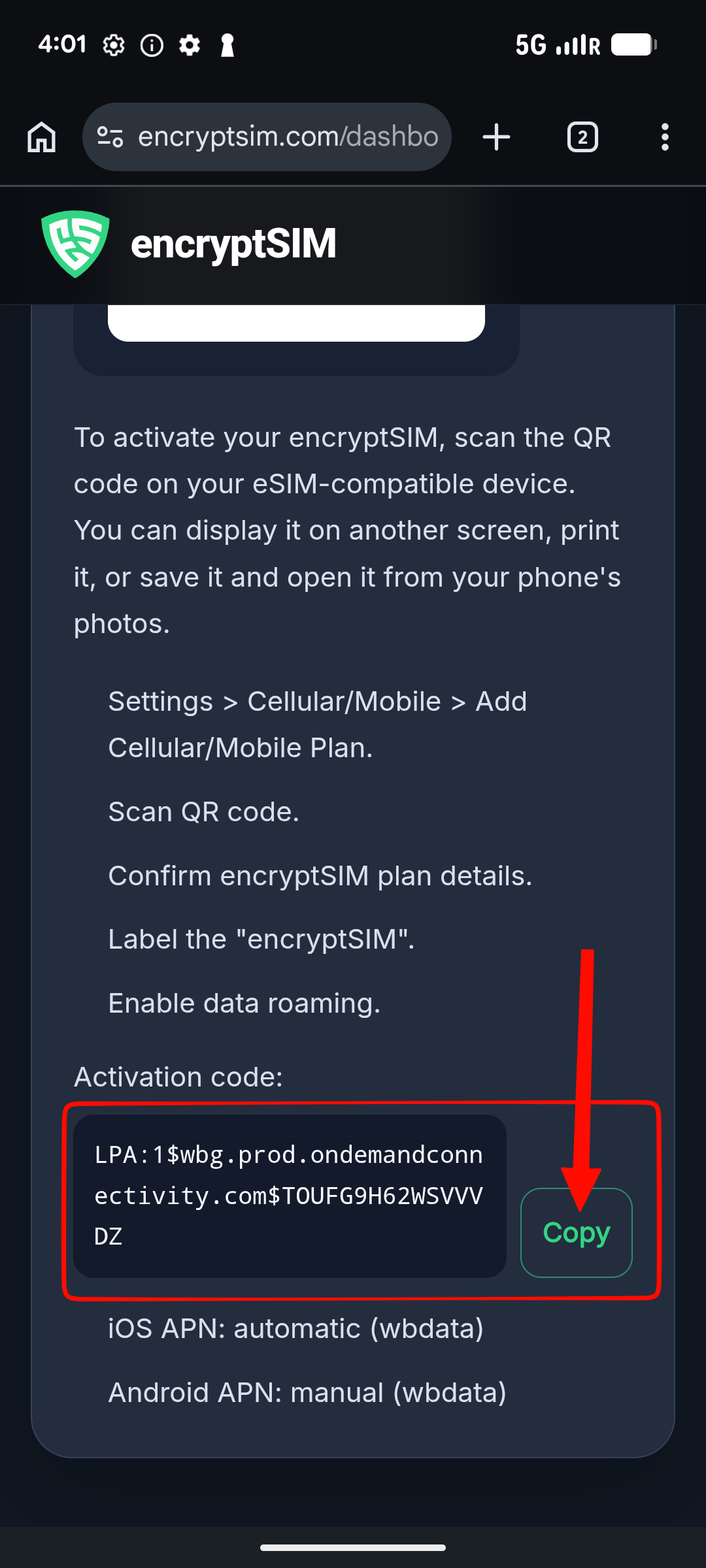
Some Android phones ask for one activation code instead of separate SM-DP+ Address and Activation Code fields. If your phone asks for one code, enter the full activation code exactly as shown by encryptSIM. It may start with LPA:1$.
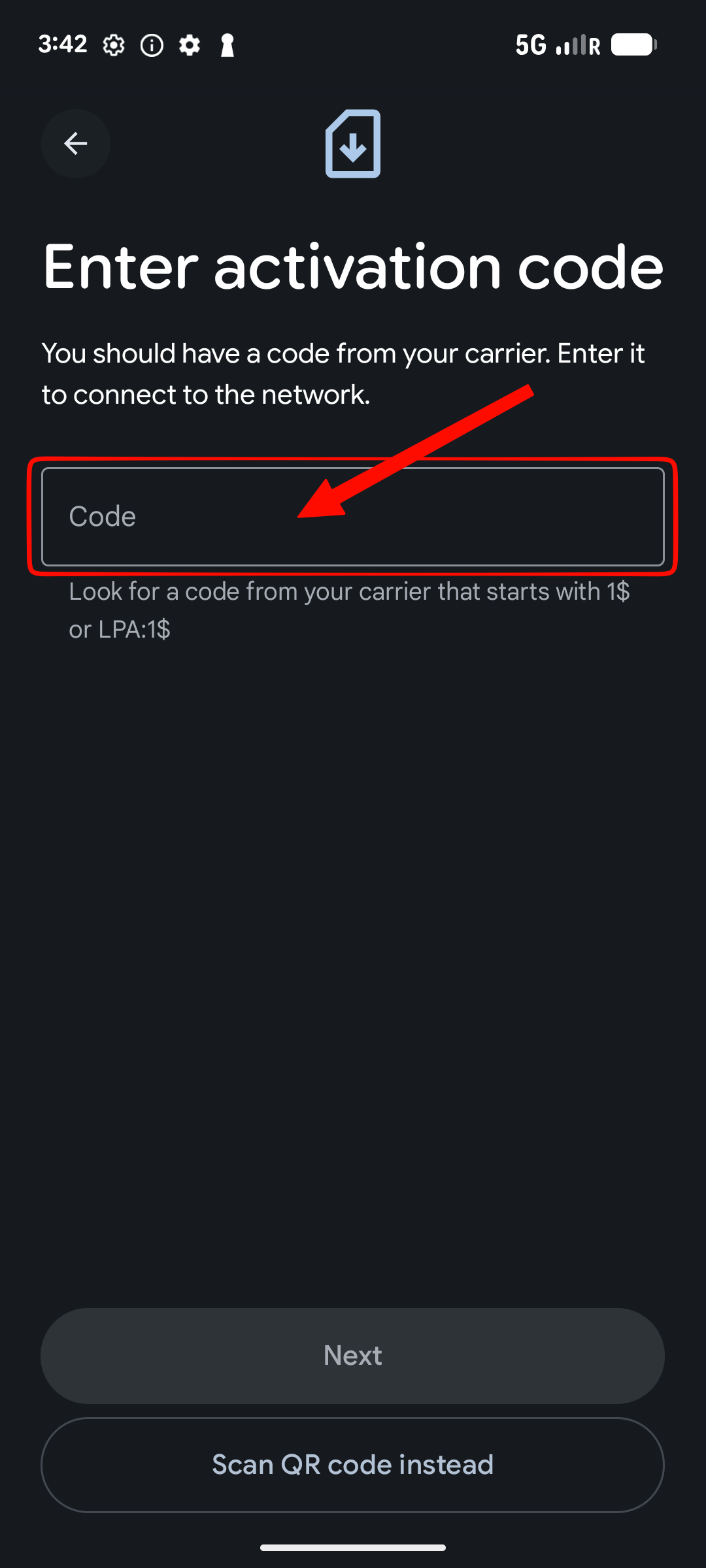
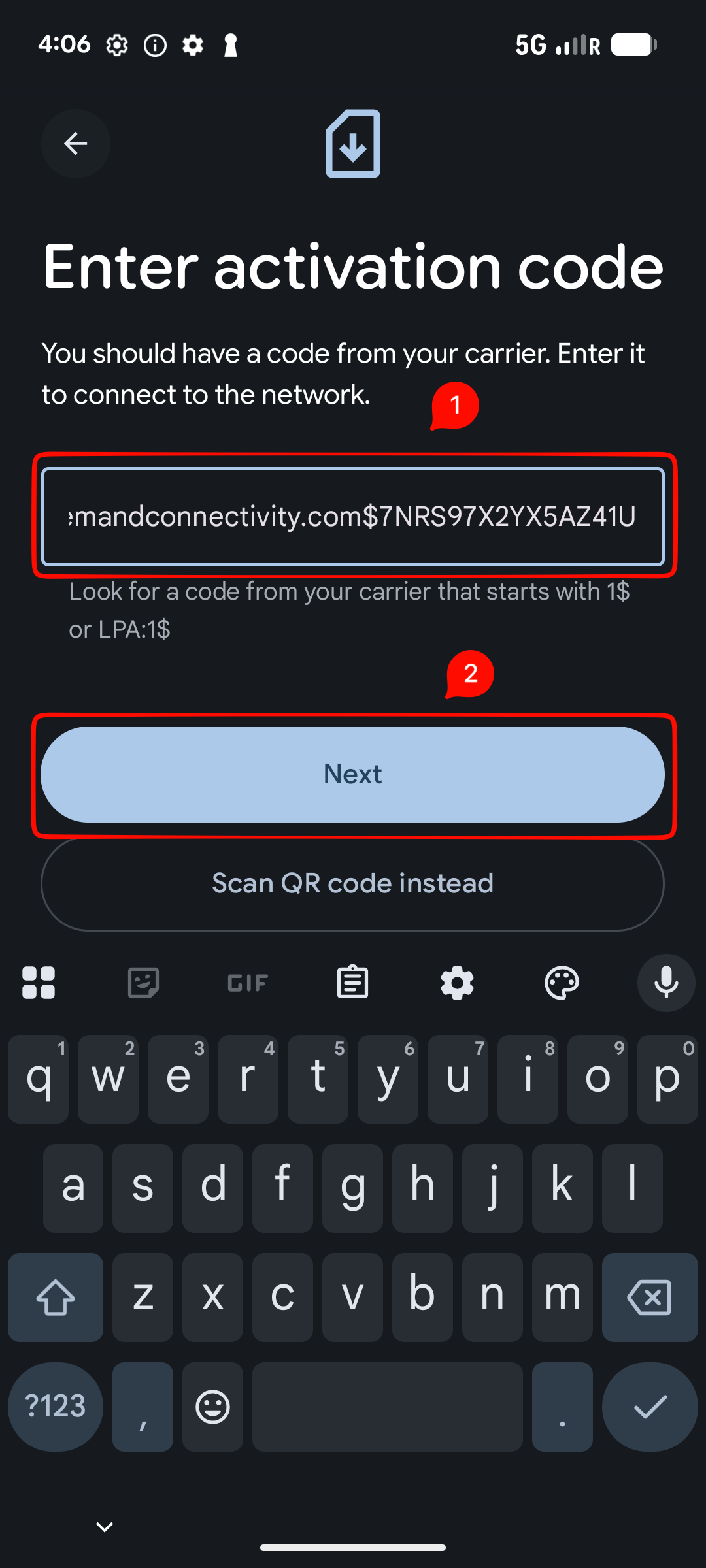
Wait for the eSIM to download, then complete the same setup choices:
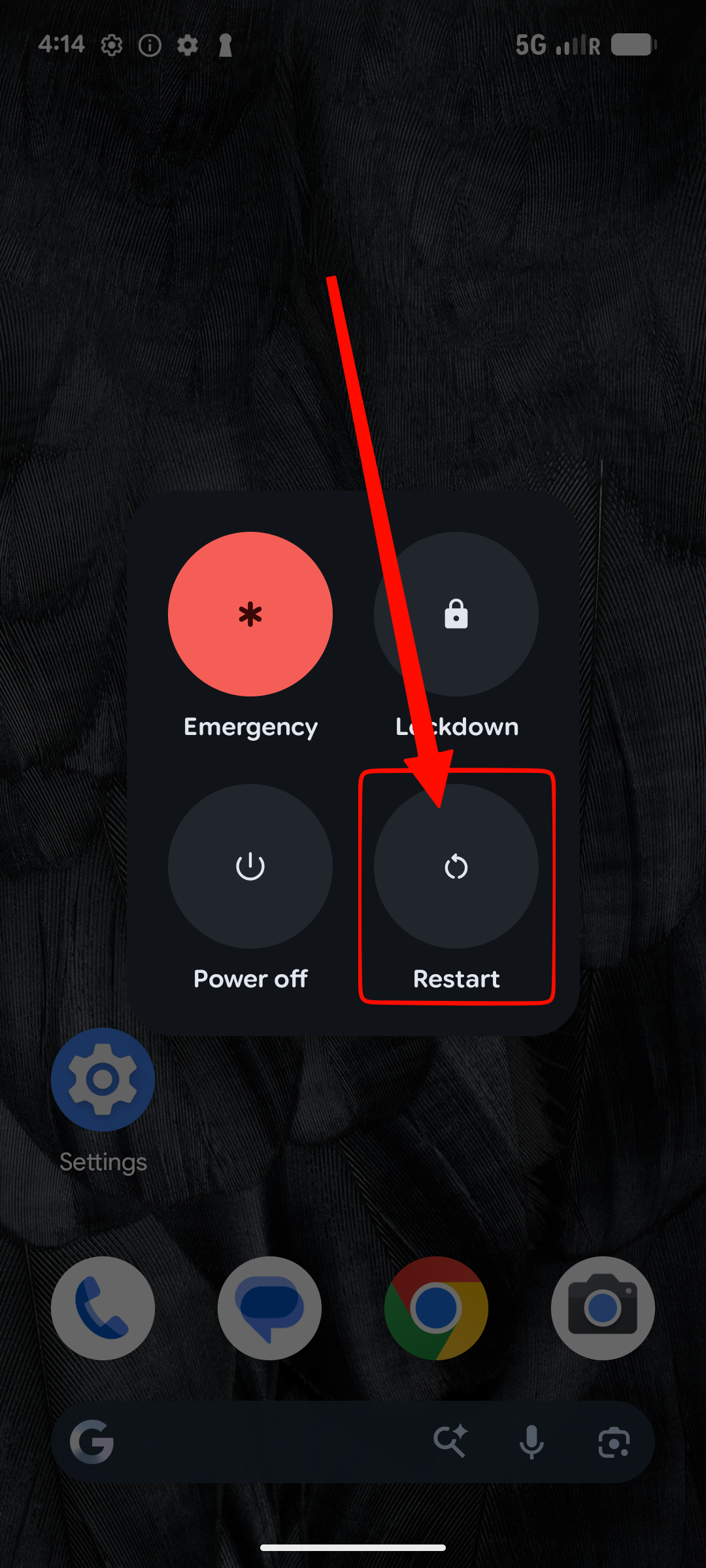
Try this:
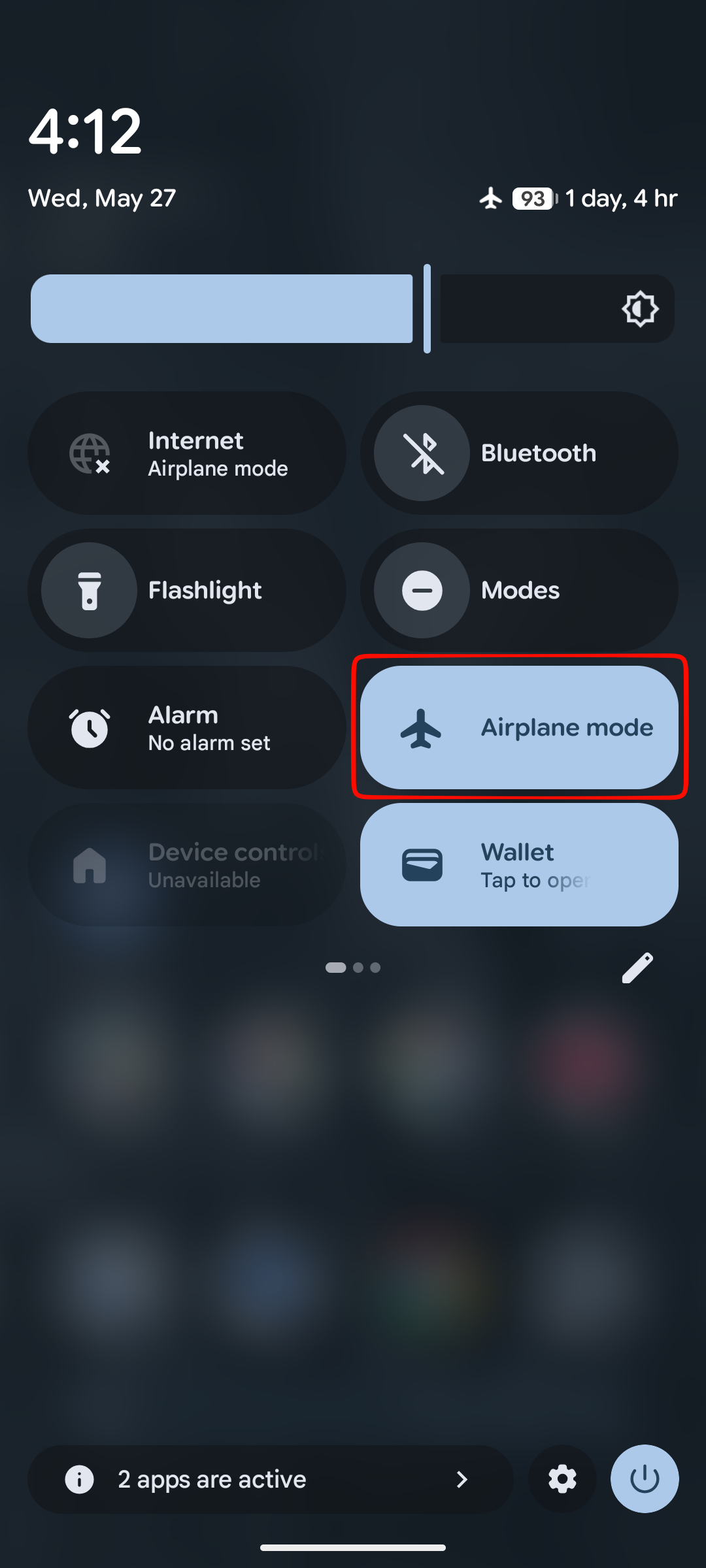
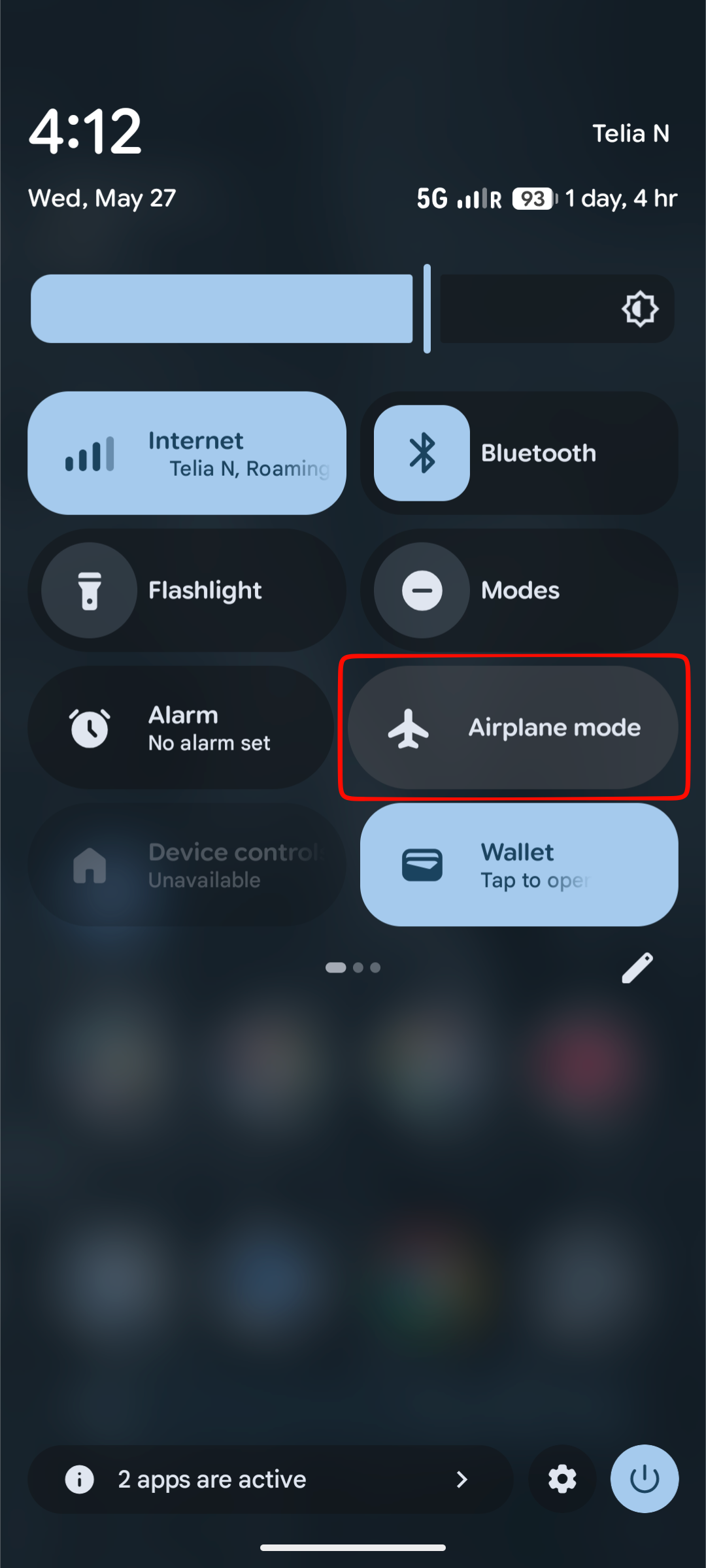
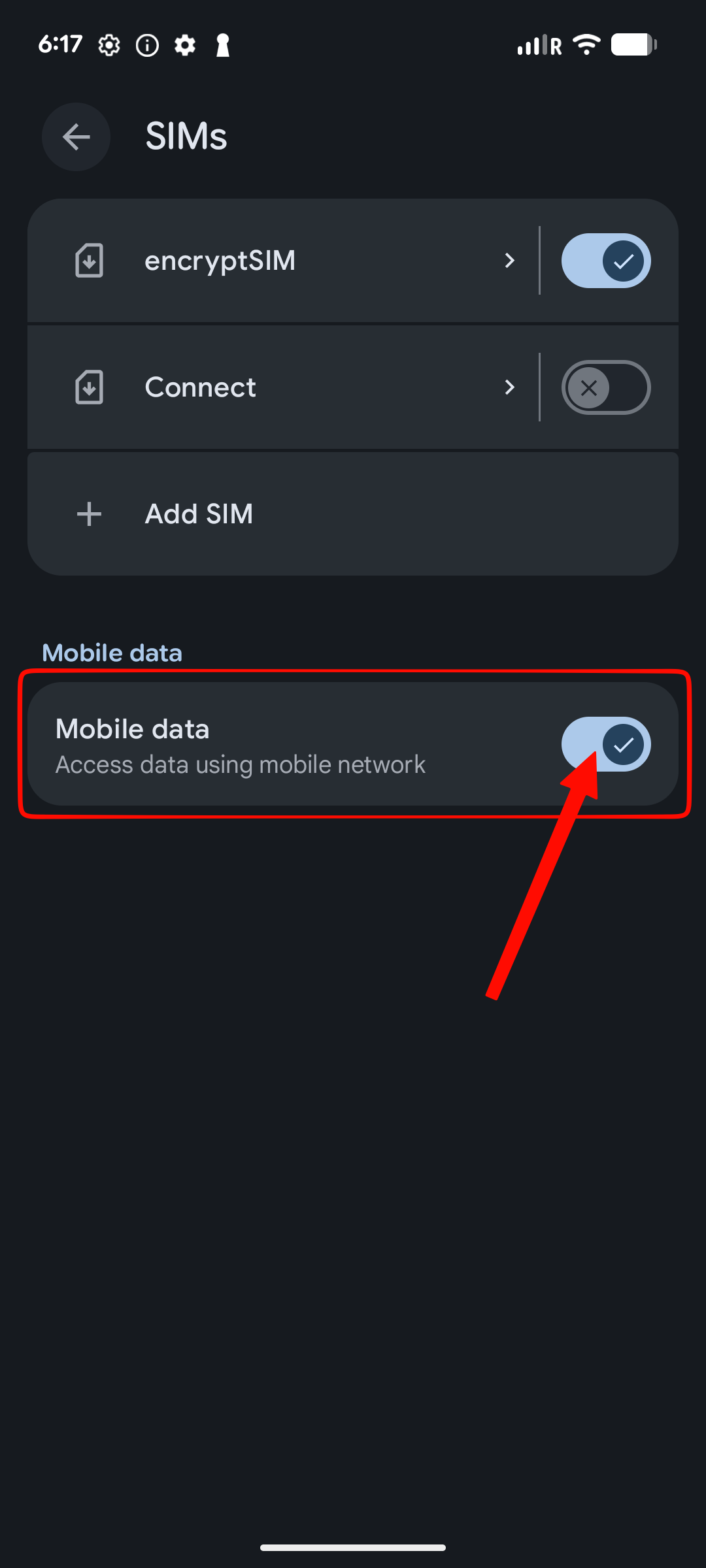
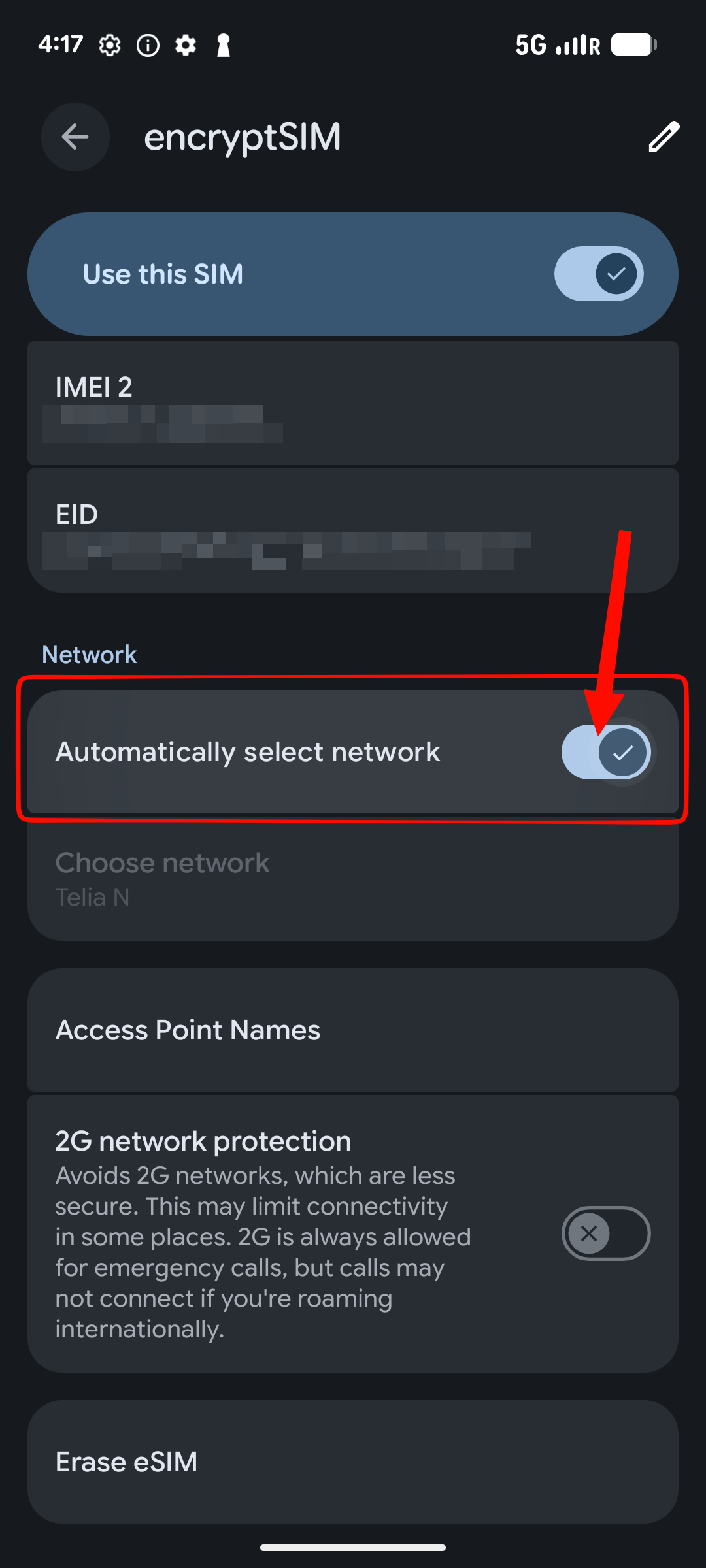
Check:
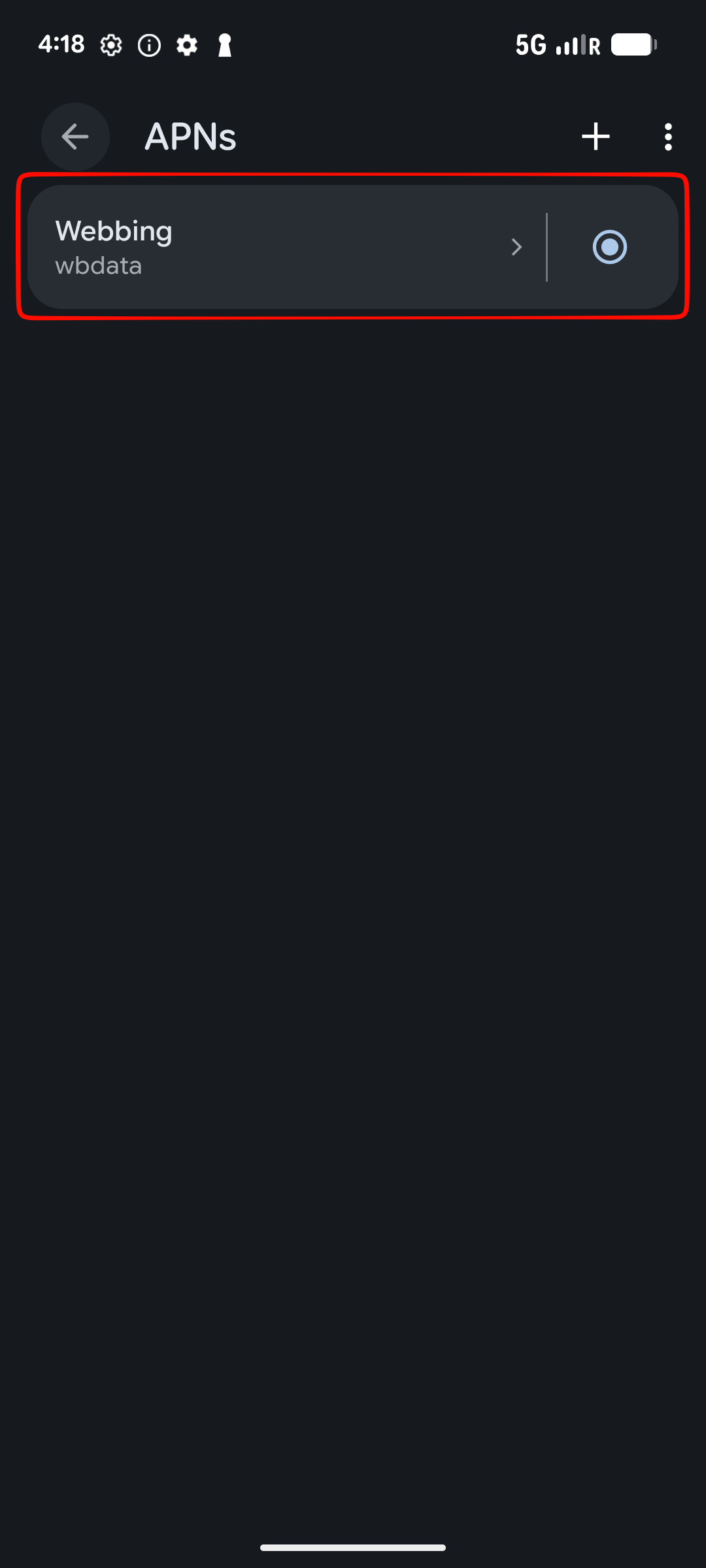
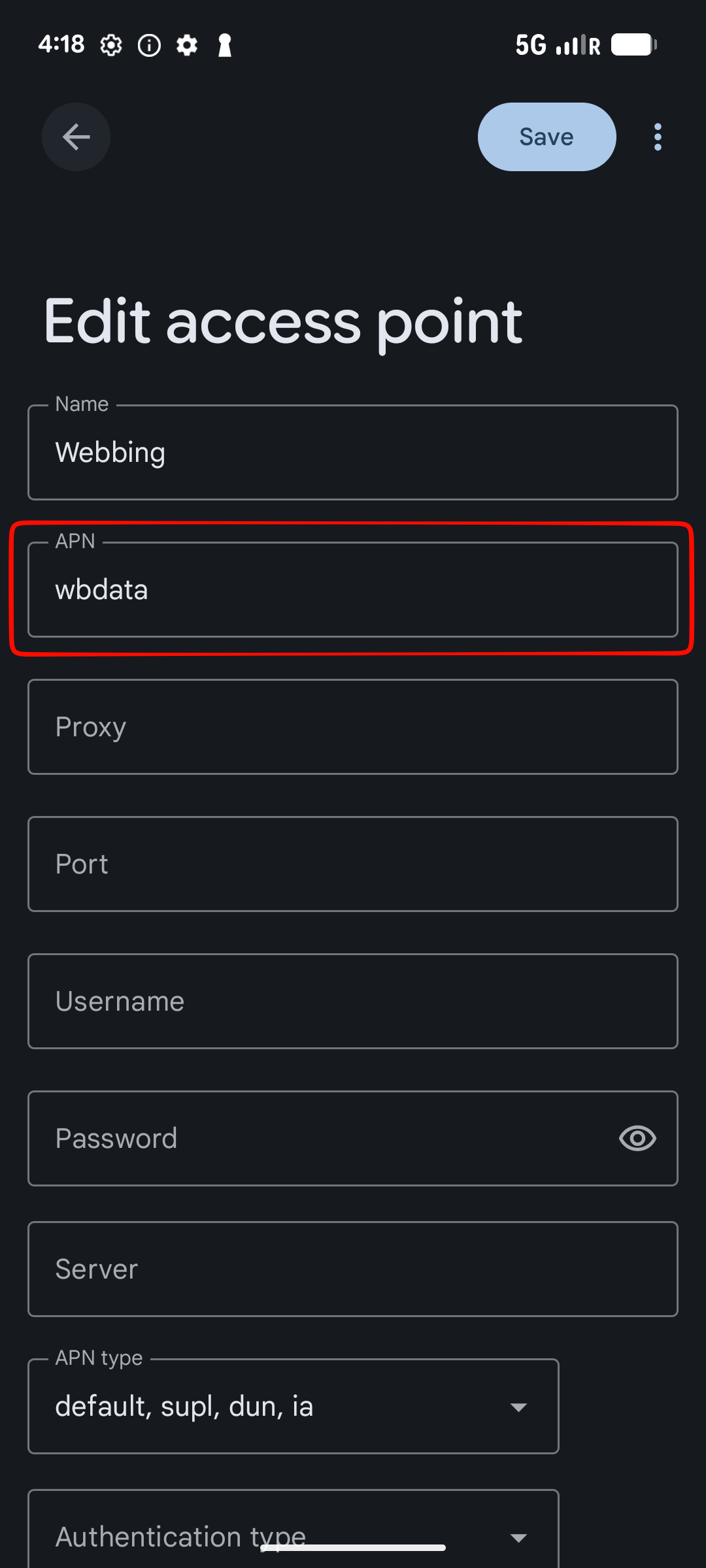
Most users do not need to edit APN settings. Only use this section if mobile data still does not work and your encryptSIM eSIM details include a specific Android APN.
Go to:
Settings - Network & internet - SIMs - encryptSIM - Access Point Names
Select the APN provided with your eSIM, or create/edit one using the APN value from your encryptSIM order page. Save the APN, select it, then toggle Airplane mode on and off.
Possible reasons:
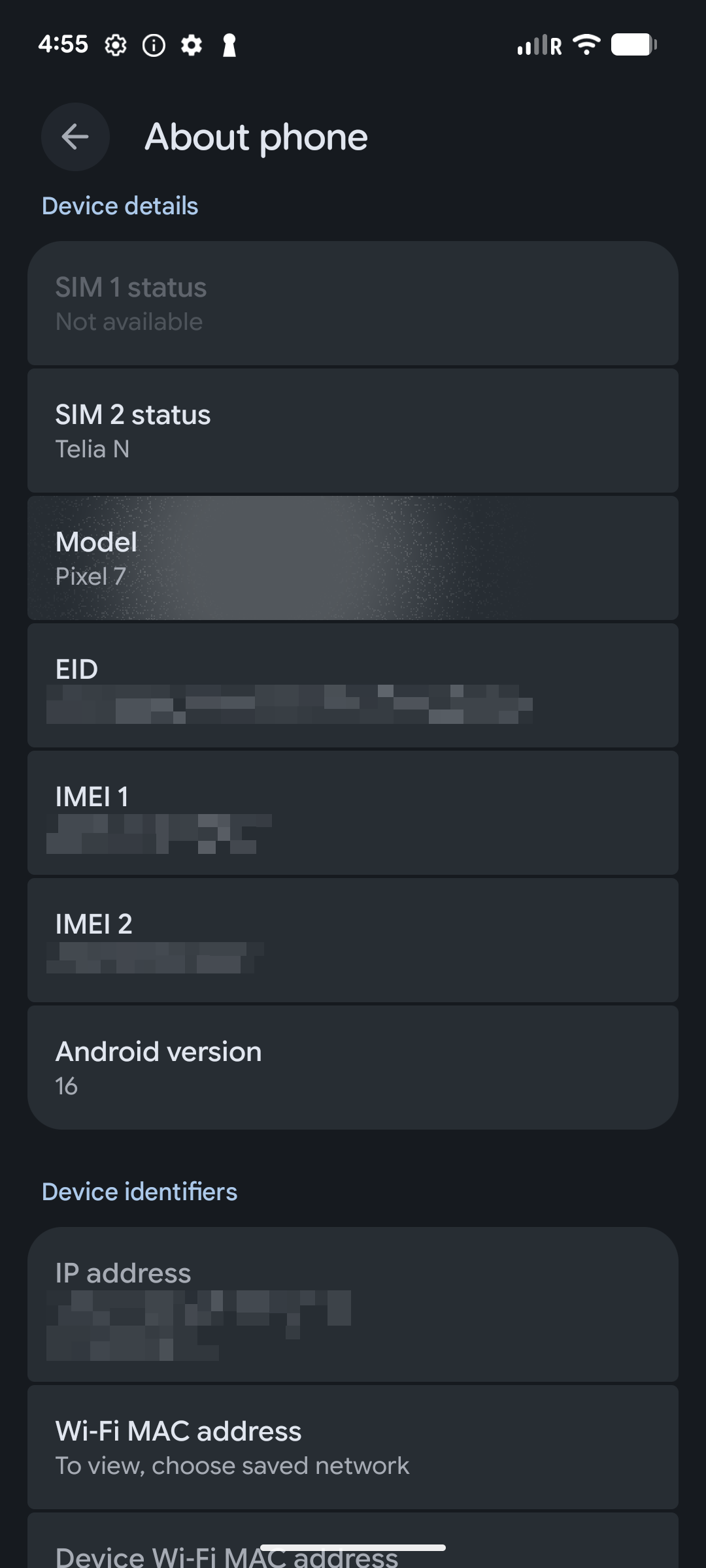
Check:
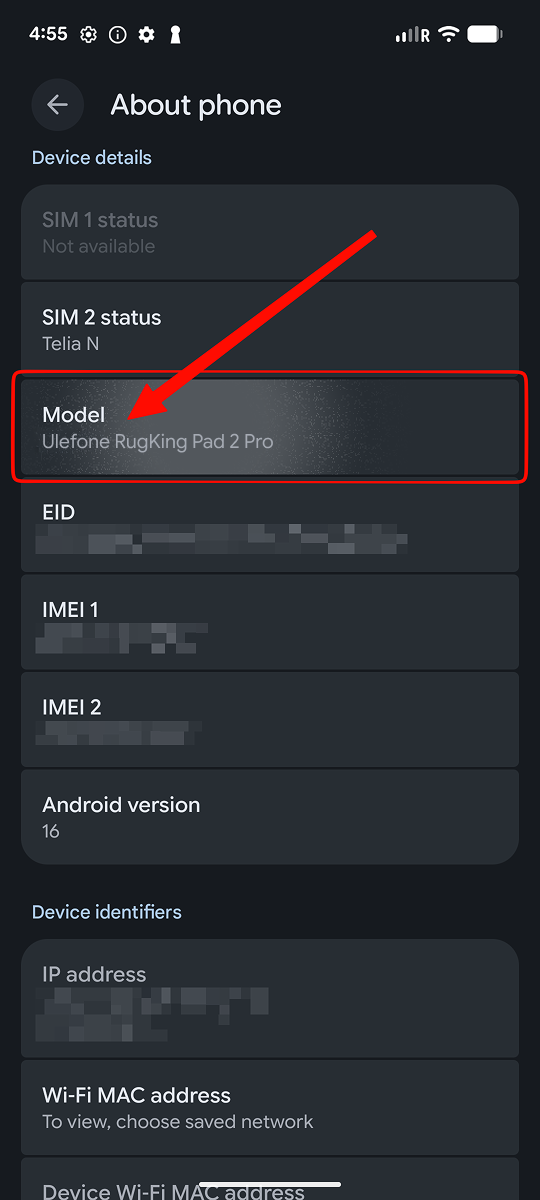
Settings - About phone
Look for:
Ulefone RugKing Pad 2 Pro is listed as an eSIM-capable device in the encryptSIM device catalog. eSIM availability can still vary by region, carrier, firmware, and hardware variant.
Yes. If your Ulefone RugKing Pad 2 Pro model is unlocked and supports eSIM in your region, you can install an encryptSIM eSIM data plan on it.
Ulefone RugKing Pad 2 Pro is not listed with 5G support in this catalog entry. It may still work with LTE or other supported mobile networks depending on the model and destination.
Ulefone RugKing Pad 2 Pro SIM details: Nano-SIM + Nano-SIM + eSIM (max 2 at a time).
Ulefone RugKing Pad 2 Pro is listed with Android 16. Software updates and regional firmware can affect setup flows and carrier options.
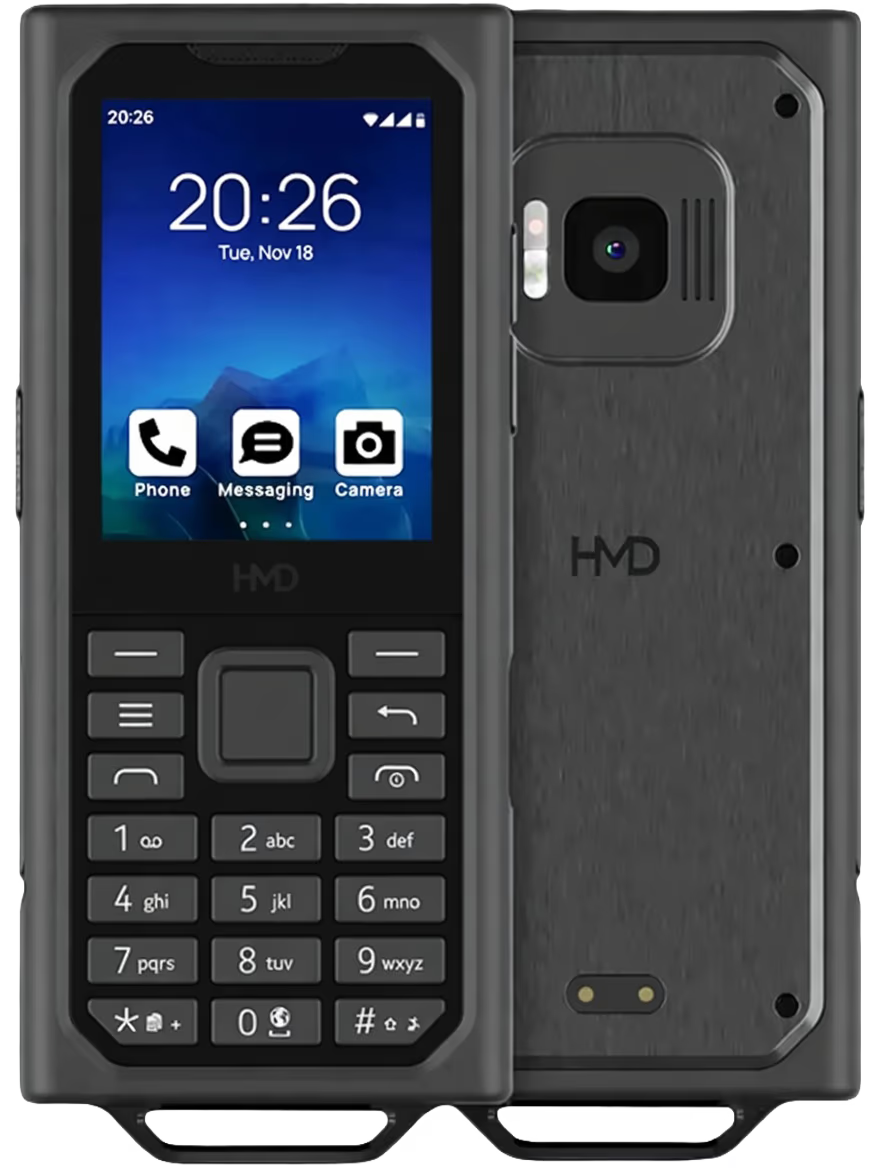 HMD Terra M Mobile · eSIM supported · 2026
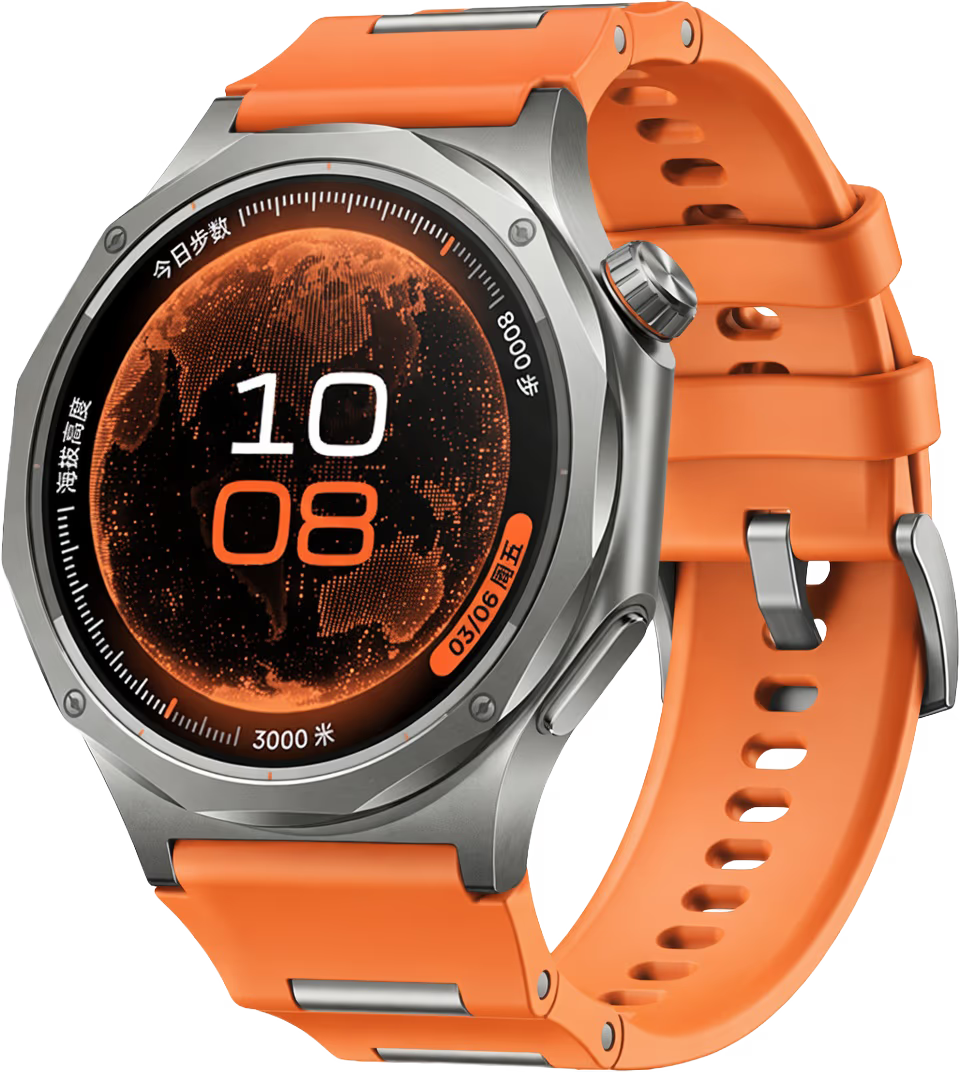 Oppo Watch X3 Mobile · eSIM supported · 2026
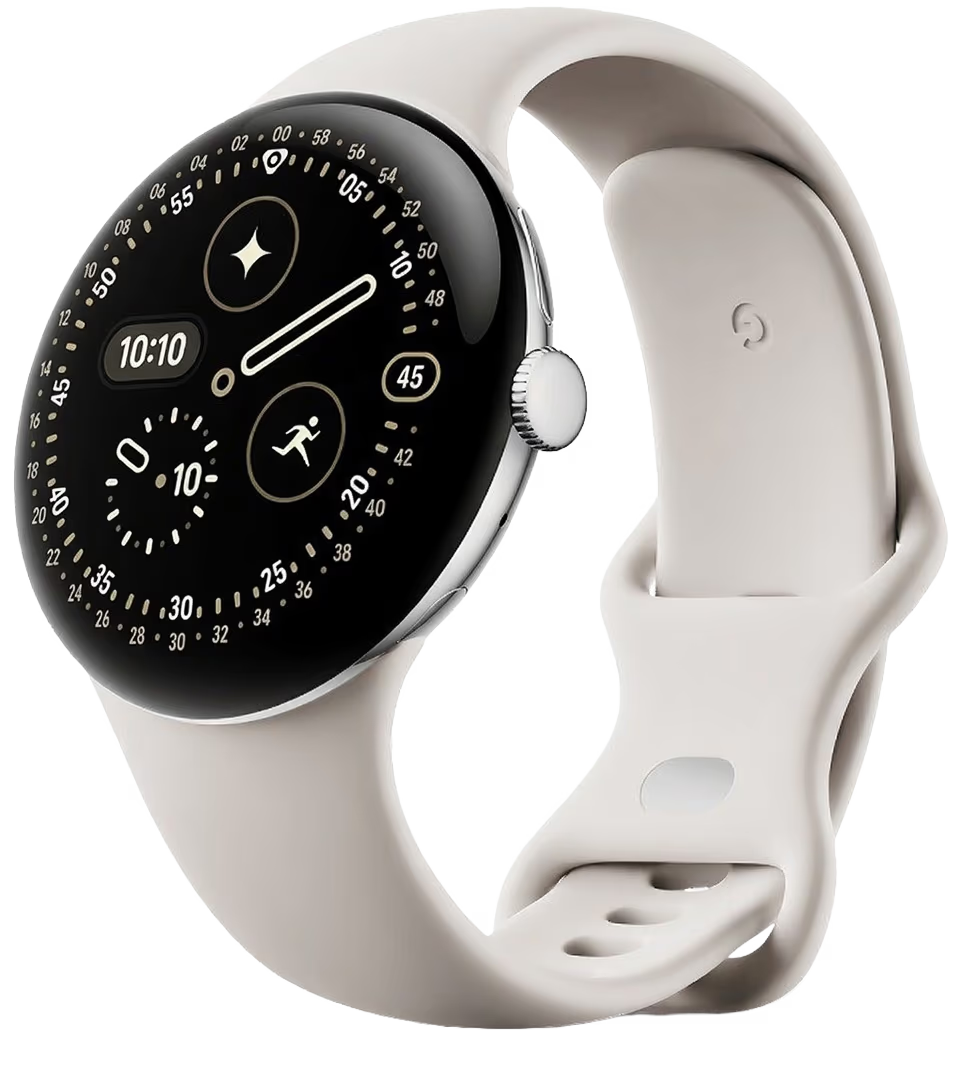 Google Pixel Watch 4 Mobile · eSIM supported · 2025
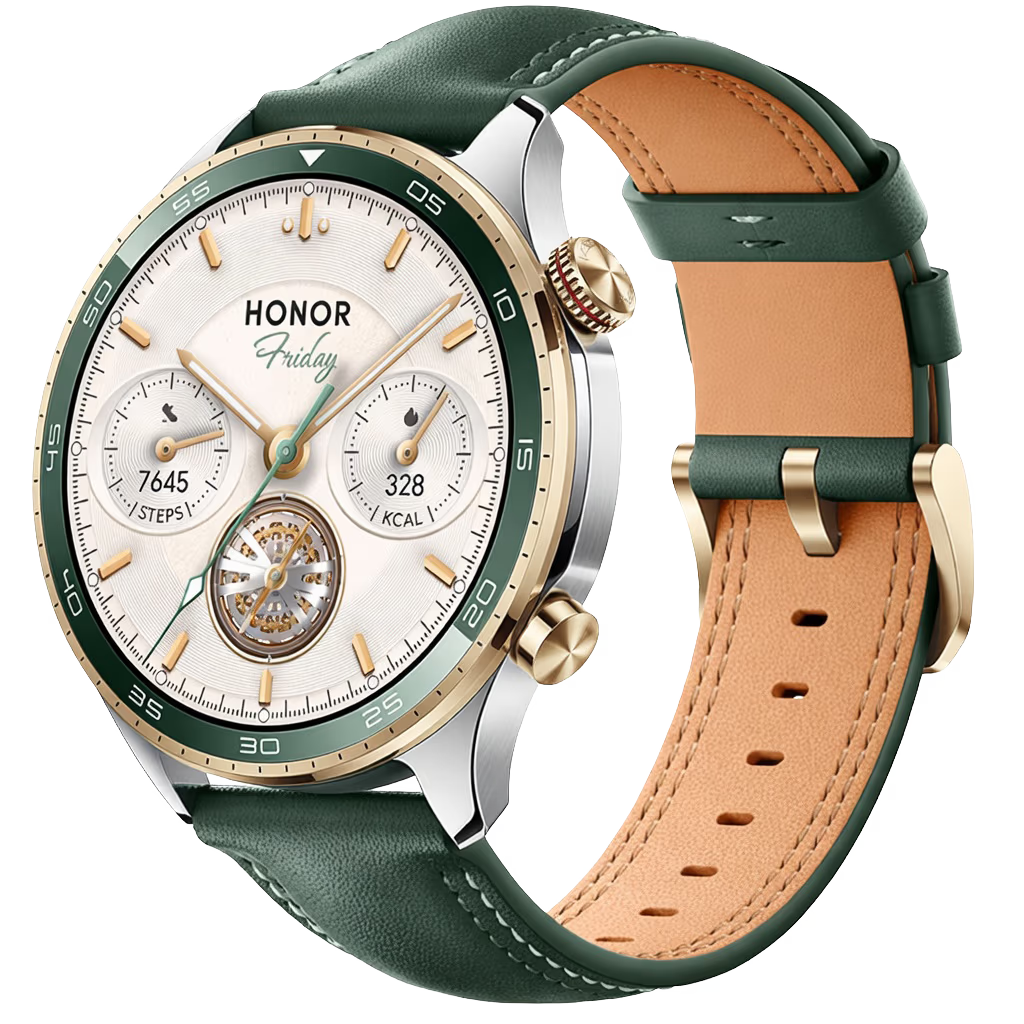 Honor Watch 5 Pro Mobile · eSIM supported · 2025
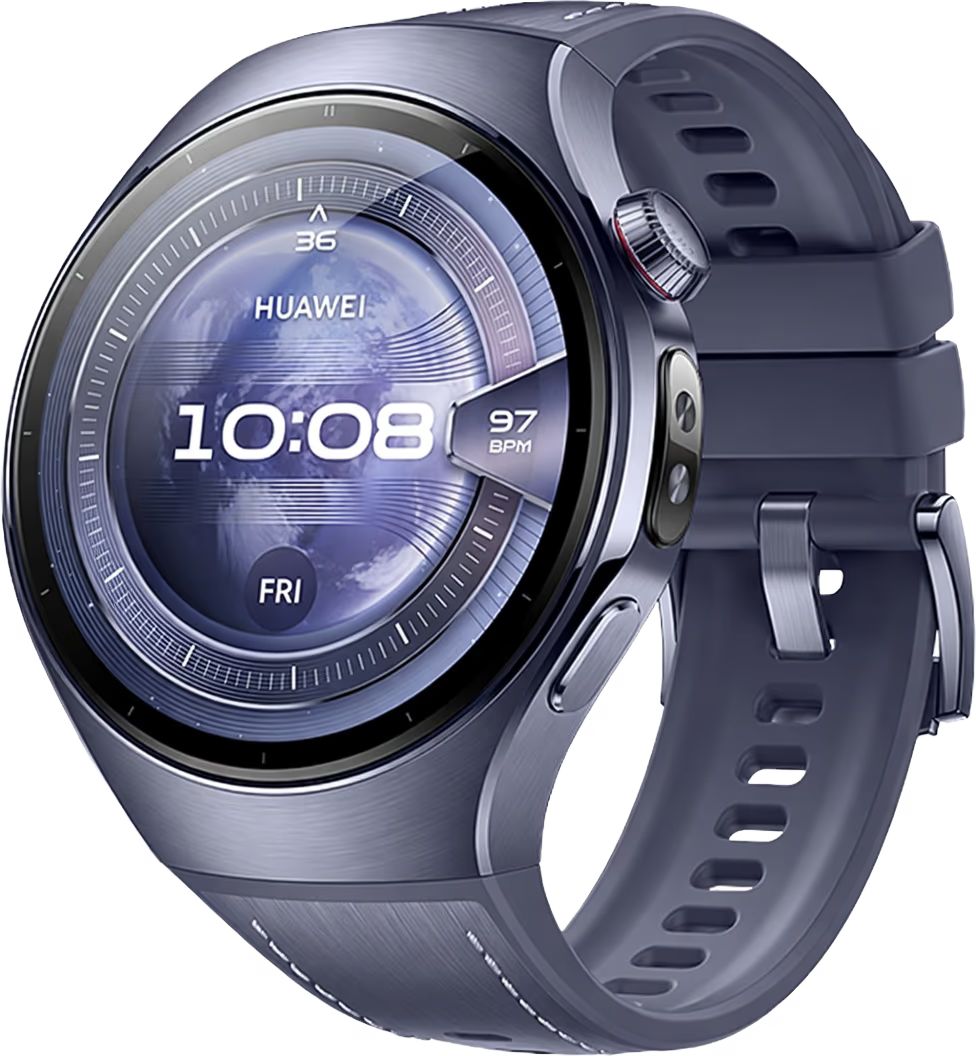 Huawei Watch 5 Mobile · eSIM supported · 2025
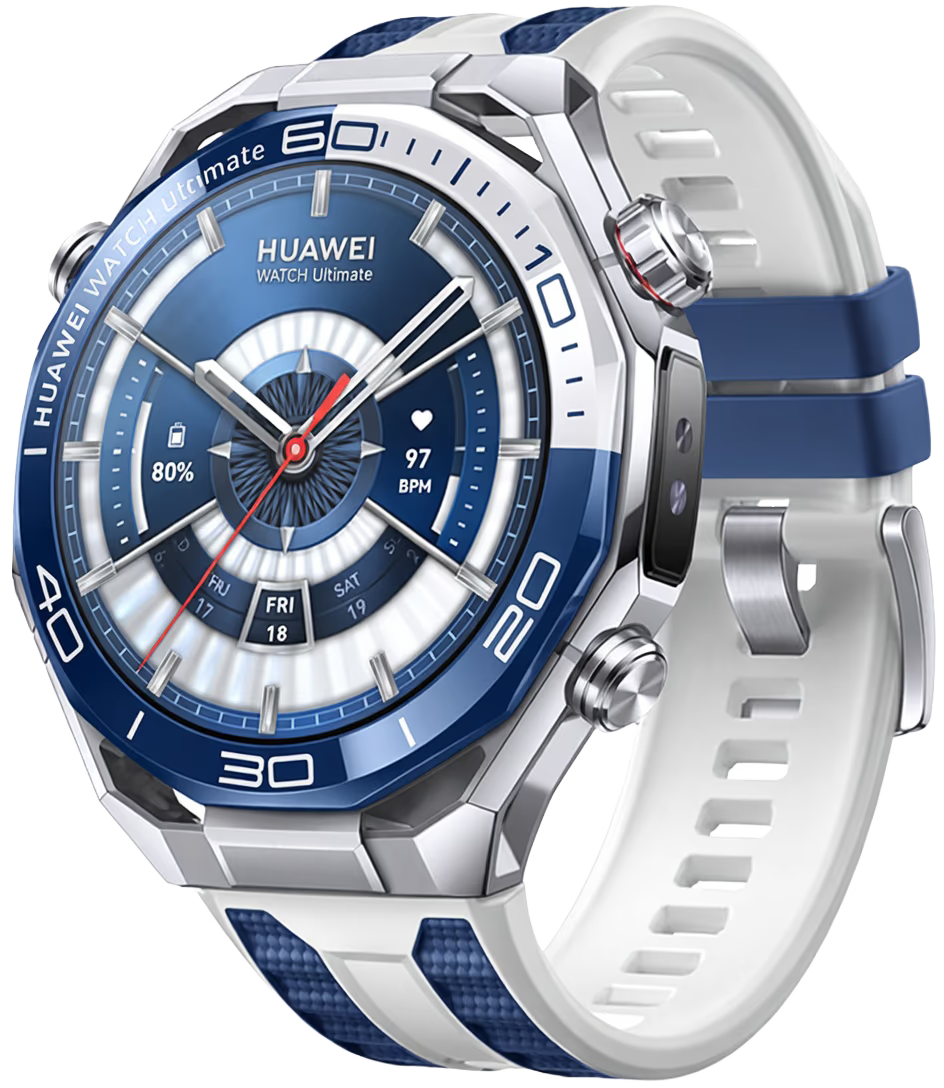 Huawei Watch Ultimate 2 Mobile · eSIM supported · 2025
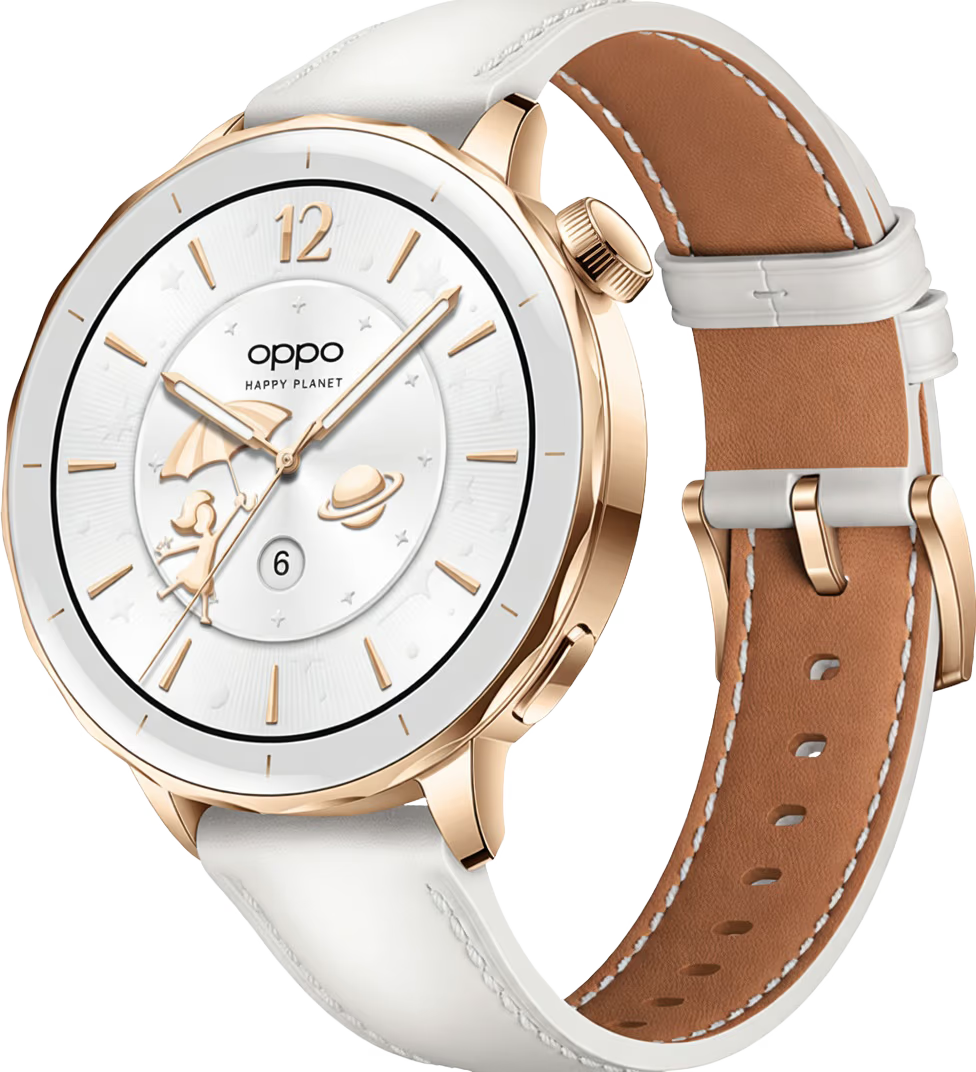 Oppo Watch X2 Mini Mobile · eSIM supported · 2025
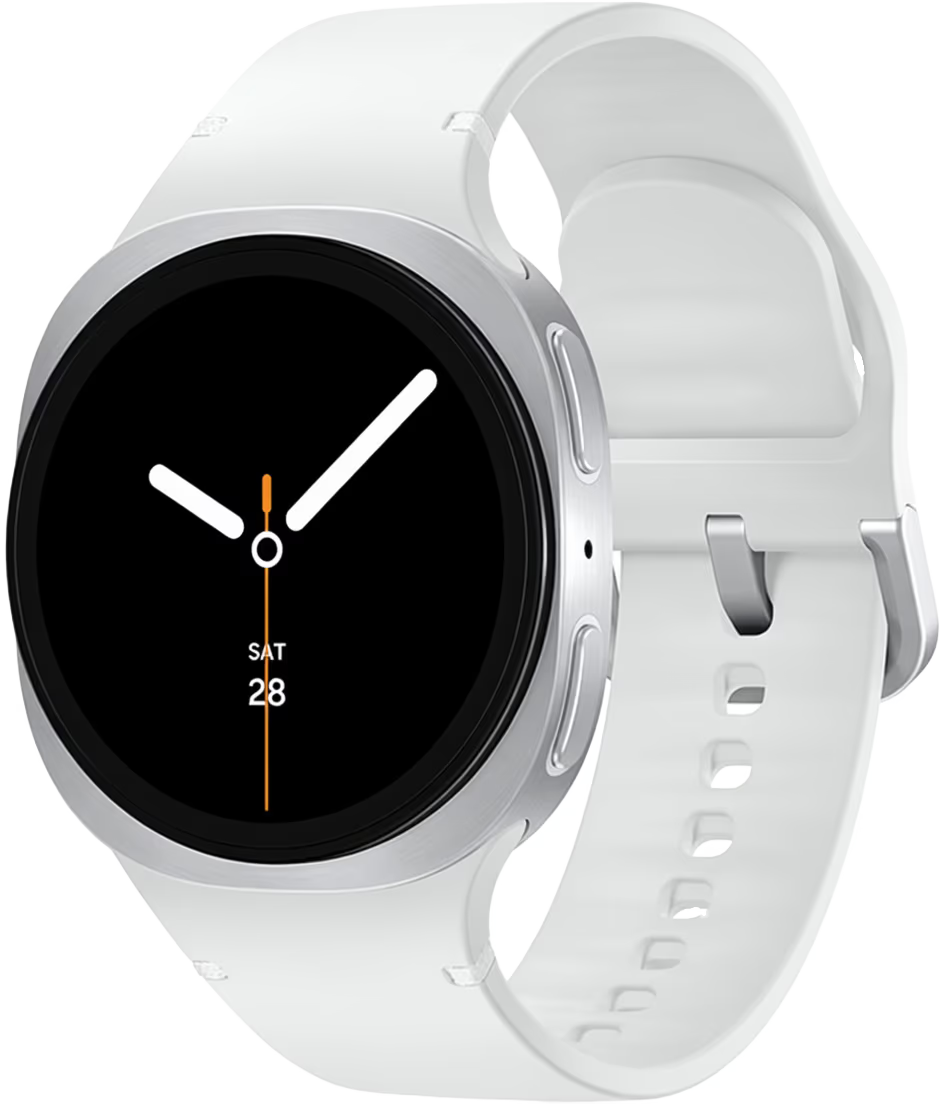 Samsung Galaxy Watch8 Mobile · eSIM supported · 2025